
Warning Using bulk updates via Excel files has an immediate impact on your Fuga environment. Errors resulting from bulk processing may not be recoverable. We strongly advise you to first perform these actions in your test environment (https://sonetas-test4.eu/fuga) and only proceed in your live Fuga after thorough review. |
Do you want to change one setting for all your clients at once, or add a large batch of new clients in one go? With the Update clients via Excel spreadsheet action you export all your clients to an Excel file, edit them there and upload the file again. Fuga then processes all changes in a single pass.
Where to find this
Go to Consultation => Actions => Update clients via Excel spreadsheet. The action is only available to users with an administrator profile.
A window openswith three steps: export, edit, upload.
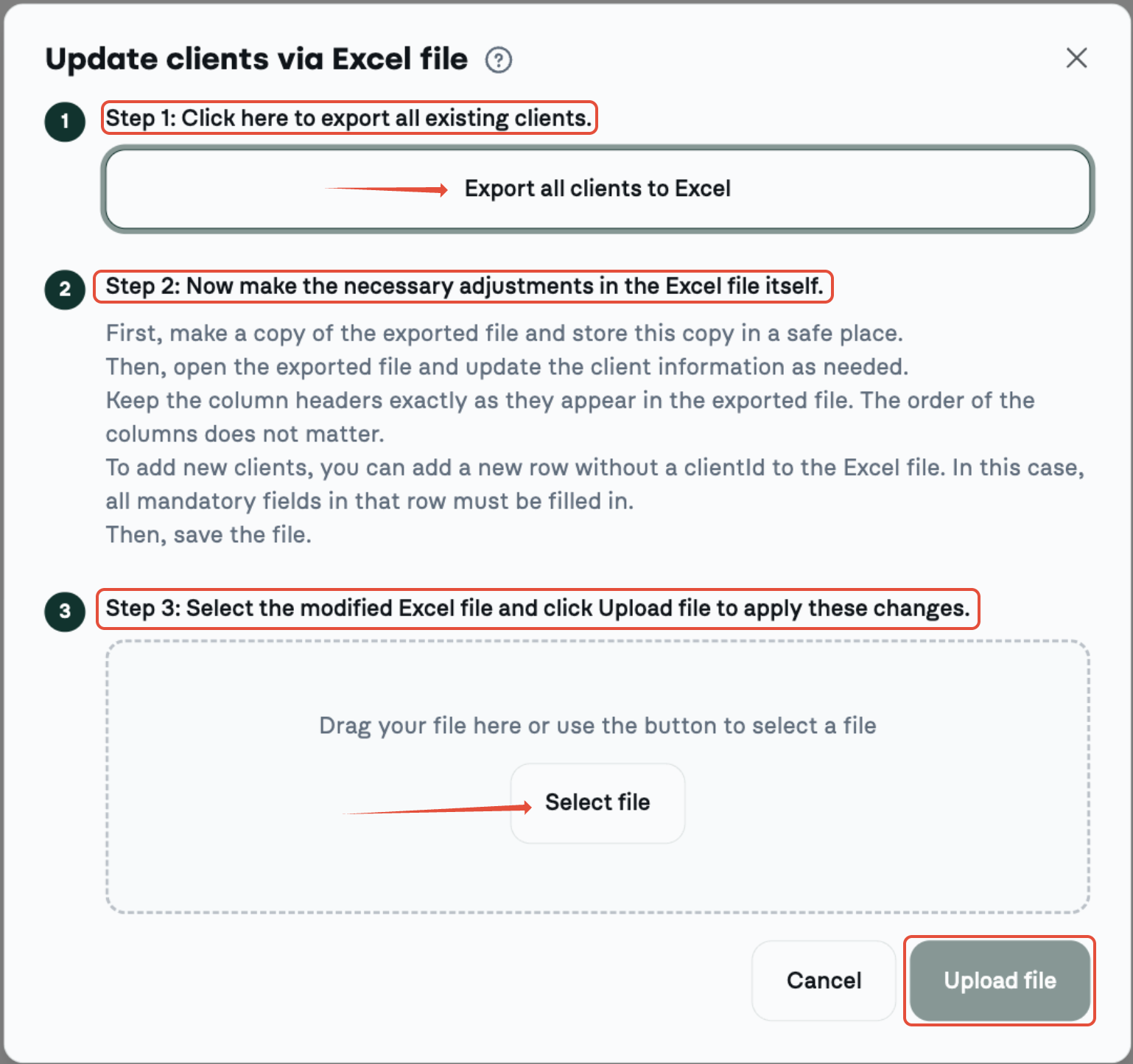
Step 1 — Export all clients to Excel
Click the Export all clients to Excel button. Fuga creates an Excel file with all your clients. There is no filtering: it is always the complete list.
Each piece of data sits in its own column. The column headers are in English, for example Client id, Client number, Last name, City, Is company, Direct debit enabled. Choice fields appear as a drop-down list to pick from, yes/no fields contain the values true or false, and fields that are empty in Fuga show as an empty cell.
Step 2 — Make the changes in the Excel file
Open the exported file and edit the client info where needed. A few guidelines:
- Keep the column headers exactly as they were exported. The order of the columns does not matter.
- You add a new client with a new row without a Client id. Then fill in at least Last name, City and one contact detail (and Client number if your practice uses manual client numbering).
- Columns you do not want to change may be removed from the file.
- A client is only updated or created if the row contains no invalid values.
- Each field contains a single value, except the contact columns (Contact (e-mail), Contact (mobile), Contact (phone), Contact (other), Contact (fax)): there you may enter multiple values, separated by a comma.
- Enter dates (Date of birth, Start date direct debit) as YYYY-MM-DD, for example 2026-09-15.
If you turn a client into a company or enable direct debit, extra fields are required:
- For Is company = "yes" you must also fill in Company name and VAT number.
- For Direct debit enabled = "yes" you must also fill in Direct debit (IBAN), Start date direct debit, Direct debit mandate Id and Pays by direct debit.
Save the file as an Excel file when you are done.
Step 3 — Upload the file
Drag the file into the window or use the Select file button, then click Upload spreadsheet. Fuga processes each row separately, so the valid clients are imported even if there is an error somewhere else.
How Fuga processes your file
Existing client or new client:
- If a Client id is filled in, Fuga updates that existing client. If the Client id does not exist, the row is rejected.
- If the Client id is empty, Fuga creates a new client.
Empty cells: if a column is in the file and you leave a cell empty, Fuga clears that value on the client. Columns you removed entirely from the file stay unchanged.
Contact details: per type (Contact (e-mail), Contact (mobile), ...) you may enter multiple values, separated by a comma. The list you provide replaces the existing contact details of that type.
Direct debit and company info: if Direct debit enabled or Is company is set to "yes", Fuga creates or updates that data; if the column is set to "no", Fuga removes that data. If you leave the column out entirely, everything stays unchanged.
Client number: with automatic numbering a Client number in the file is ignored; with manual numbering it is applied.
Result of the import
After the upload Fuga shows an overview of the rows that could not be imported. For each rejected row you see the row number, the client number and the reason. A few examples:
- Client id does not exist in Fuga
- a required value is missing to save the client (e.g. Last name, City, Company name or a contact detail)
- a choice field contains a value that is not in the drop-down list
- a yes/no field contains something other than true or false
- a value is too long, or a VAT number is invalid
This way you immediately see which rows you need to correct, and you can upload the file again afterwards.
Below that overview, the Export clients with error button lets you download an Excel file containing only the refused rows. This file has exactly the same columns as the imported file, plus one extra Errors column as the very last column showing the refusal reason per row. Correct those rows in the file and re-import it — so you only reprocess the refused clients.
Important
Clients that were in the export but that you remove from the file are not deleted from Fuga. Leaving out a row is therefore safe.
Adding clients to a database without clients
Even if you do not have any clients in Fuga yet, you can use this action to import your clients in one go. The export returns an Excel file with only the column headers (with the drop-down lists in the columns), without any client rows underneath. You use that file straight away as a blank template.
Proceed as follows:
- In step 1, click Export all clients to Excel. You get a file containing only the column headers.
- Fill in a separate row for each new client and leave the Client id column empty. Enter at least Last name, City and one contact detail (and Client number if your practice uses manual client numbering).
- Save the file as an Excel file and upload it via step 3.
Fuga then creates a new client for each row. The in-cell drop-down lists also work in this empty file: click a cell under the column header and the drop-down arrow appears.
Possible values for the drop-down lists
For these columns you pick the value from a drop-down list inside the cell itself: click the cell, use the arrow that appears and select one of the fixed values (English codes). So you do not have to type it manually. If you leave such a cell empty, no value is set for that field and it stays empty for the client.
| Column | Value in Excel | Meaning / label in Fuga |
|---|---|---|
| Title | Mr | Mr |
| Mrs | Mrs | |
| Miss | Miss | |
| Dr | Dr. | |
| Vet | Veterinarian | |
| Prof | Prof. | |
| Family | Family | |
| Hh | HH | |
| Hrh | HRH | |
| MrAndMrs | Mr and Mrs | |
| MrAndMr | Mr and Mr | |
| MrsAndMrs | Mrs and Mrs | |
| MrSlasMrs | Mr/Mrs | |
| VetAss | Assistant | |
| Counter | Counter | |
| Dap | Vet practice | |
| Dac | Vet center | |
| DierKlin | Vet clinic | |
| FysioTher | Physiotherapist | |
| RevalTher | Rehabilitation therapist | |
| Esq | Esq. | |
| Partshp | Partnership | |
| Firm | Firm | |
| Vof | GP | |
| DairyFarm | Dairy farm | |
| SheepBree | Sheep breeding farm | |
| SheepFarm | Sheep farm | |
| CareFarm | Care farm | |
| Sex | Male | Male |
| Female | Female | |
| Unknown | Unknown | |
| Language | Dutch | Dutch |
| French | French | |
| English | English | |
| German | German | |
| News letter, Send financial docs | ||
| Post | Post | |
| Send treatment reminder | ||
| Post | Post | |
| Sms | Sms — only if the practice has SMS configured | |
| Send consultation appointment confirmation, Send consultation appointment reminder | ||
| Sms | Sms — only the channels enabled in the practice preferences | |
| Allow marketing messages method | Oral | Oral |
| MyPetsProfile | Profile myPets | |
| MyPetsFirstMessage | first myPets message | |
| MyPetsTerms | Terms and conditions myPets | |
| Denied | Denied | |
| Email missing reason, Gsm missing reason | NotAsked | Not asked |
| NoContactMedium | Not available | |
| DoesNotWishToShare | Does not wish to share | |
| Reference | NONE | none |
| SOCIAL_MEDIA | Social media | |
| COMMERCIAL | Commercial | |
| REFERENCED | Referred | |
| Pays by direct debit | CARE_PLANS | Care plans |
| ALL_INVOICES | All invoices | |
| Country | English country name (e.g. Belgium, Netherlands, France) | the client's country |
| yes/no columns | true | yes |
| false | no |