
To create a new protocol, you need to be in the Settings tab. Under the actions you can then Add protocol. You can also create a protocol with the plus from the overview of protocols (enter an asterisk in the search bar of the protocols). Or you can also add 'add protocol' to the dashboard of the settings by clicking the gear at the top right. Then, under dashboard tiles, you can add the action: add protocol. This will then always be visible on the dashboard of the settings.
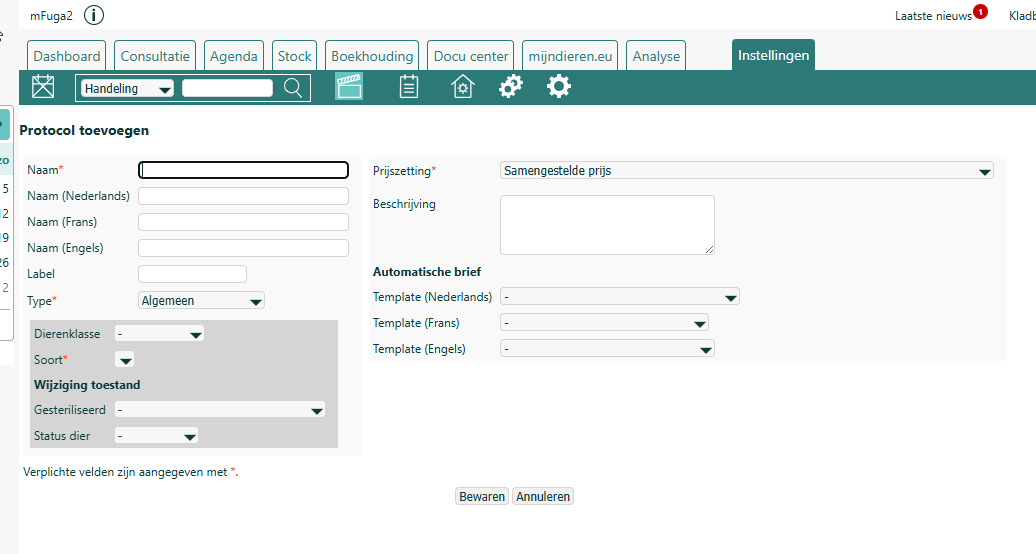
In the new screen you must fill in various data relating to the protocol.
- Name - Here you give the protocol a meaningful name, so that you can easily find it again later. You can also give the protocol a language-specific name in Dutch, French and English. In that case, that name appears in the correct language in the communication (invoice, receipt, etc.) with the client.
- Label - It is possible to assign a 'label' to a protocol, just like with products or clients. You can then request reports in which you can use this label as a filter.
- Type - There are various protocol types, select the correct type here (more info below). For each protocol it can also be specified to which animal class and/or animal species the protocol applies. If these are filled in, the protocol can only be applied to animals of this animal class and/or species. In a consultation of a dog, for example, you will then only see the protocols that can be applied to dogs and unspecified mammals.
- Fixed price - Here you select which pricing you want to use for the protocol. Please note: the principle of VAT on sold products is that the VAT% of the purchase is taken, so if in a protocol you sell 2 products A and B where you purchased A at 10 Euro with a VAT of 6% and B at 5 Euro with a VAT of 21%, then the fixed prices for the sold products in a protocol should roughly respect that ratio, so e.g. 'Total price excl. VAT (sold products, low VAT)'= 20 Euro and 'Total price excl. VAT (sold products, high VAT)'= 10 Euro. You of course choose yourself which profit margins you take on both products
- Composite price - If you choose this option, Fuga composes the price itself based on all the items in the protocol.
- Fixed (services and administered products), composite (sold products) price - The price you enter here only applies to the services and administered products. The price of sold products falls outside this fixed price and is calculated separately, because the determination of the VAT percentage is different for both groups.
- Fixed price - The price you enter here applies to wages, administered products and sold products. In doing so, you indicate yourself what the amount is on which a low VAT percentage must be calculated and what the amount is on which a high VAT percentage must be calculated.
- Description - Here you can give a more in-depth description of the protocol if desired.
Depending on which type of protocol you select, you can specify some details.
- Sterilised - When the animal undergoes a sterilisation after applying the protocol, you can enter it here.
- Animal status - When the animal undergoes a change of status after applying the protocol, you can enter it here. A euthanasia will, for example, give a 'Living' animal the status 'Euthanasia'.
- Diseases - Depending on the chosen vaccination type of the animal, various diseases will appear for which you can vaccinate the type of animal.
- Period - This is the time span between two protocols. When the animal should come back one year after vaccination, you enter '1 year' here.
- Period between treatments - For a product treatment you can indicate how much time you recommend between the treatments. This allows reminders to be sent for each administration/intake that the client/animal must carry out.
- Number of treatments - For a product treatment you can indicate how often a product must be taken. This allows reminders to be sent for each administration/intake that the client/animal must carry out.
- Template - For the three languages (Dutch, French and English) different templates can be chosen. Those templates will then be used when sending the reminders. Fuga provides standard templates.
- Template (e-mail) - Optionally you can choose different templates for the three languages (Dutch, French and English). Those templates will then be used when sending the reminders by e-mail. If you do not select a template here, the regular template is used for both letters and e-mails.
- Template (sms): If you choose the option to notify the clients by sms, then you can place the appropriate templates here in the three languages (Dutch, French and English).
- Reminder via myPets - Reminders for vaccinations and product treatments are automatically followed up and sent by myPets. When you leave this option checked, you activate this system.
Here you can also link an automatic letter to these protocols. This automatic letter can for example be the aftercare or follow-up of an operation. For this you then need to create a template that is fully tailored to your practice.
You can find the manual on adding a template here: How do I add a template?
Here you can further supplement the protocol with subprotocols, protocol acts, protocol products and task templates (via the plus icon under the various tabs).
Adding a task template to a protocol has the effect that when a protocol is executed, 1 or more tasks are automatically created. This can, for example, be used to automatically schedule follow-up phone calls as tasks for an operation. When applying a protocol, you still have the option to assign the task to another collaborator.
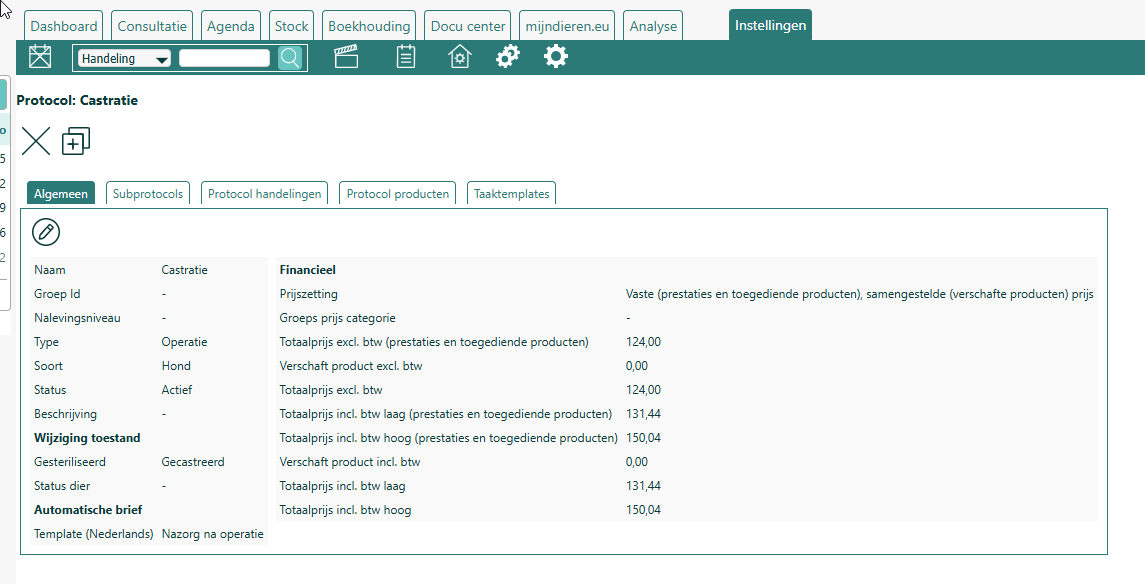
You can only add subprotocols before saving (publishing). Afterwards this is no longer possible and you will have to clone the protocol.
After completing the protocol, you have the option to publish the protocol by clicking the 'Publish' icon ( ). Upon publication, a number of fields are locked: name, type, animal class and species, subprotocols. Some fields always remain editable. This is a crucial step, because you can only use published protocols in consultations. You can of course still modify the protocol by clicking the 'Edit' icon (
 ).