
What is IDEXX VetConnect PLUS?
This module lets you create IDEXX requests directly from Fuga and have the results returned automatically to the correct consultation records.
This option can be used both for communication with the external IDEXX reference laboratory and for communication with in-house instruments. To communicate with in-house instruments you need the optional Symphony module. To request Symphony, send an e-mail to fuga@sonetas.eu or call our helpdesk.
You can find more information about IDEXX VetConnect PLUS on their website or send an e-mail to referencelabs-belgium@idexx.com.
Settings
Fuga
Enter your details under Settings => Practice preferences => Lab, in the IDEXX VetConnect PLUS section.
IMPORTANT:
The username and password you have to enter here are NOT the MyIDEXX login credentials you use to log in to VetConnect PLUS via the website. You can request the username and password from IDEXX Customer Support.
IDEXX
Please note: after you complete the steps below, it can still take several hours before the vetlab station (VLS) you link to VetConnect PLUS becomes visible in VetConnect PLUS, and therefore also in Fuga. Your VLS will not be available immediately after performing these steps.
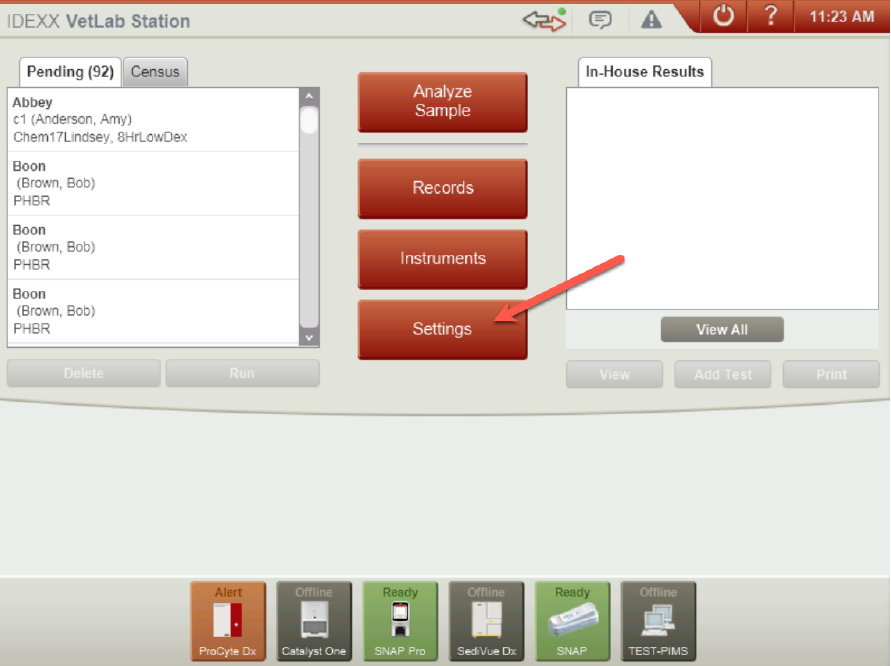
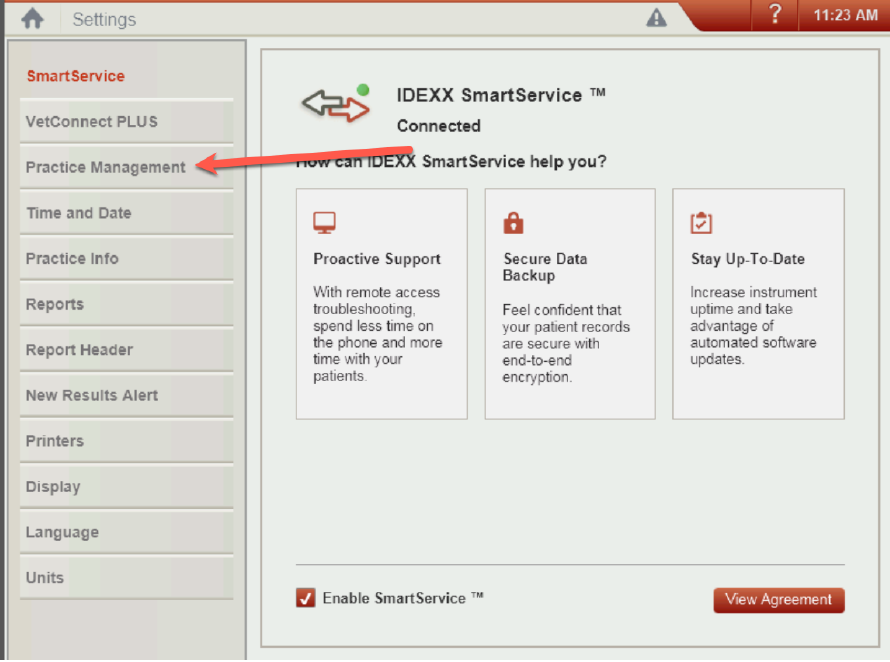
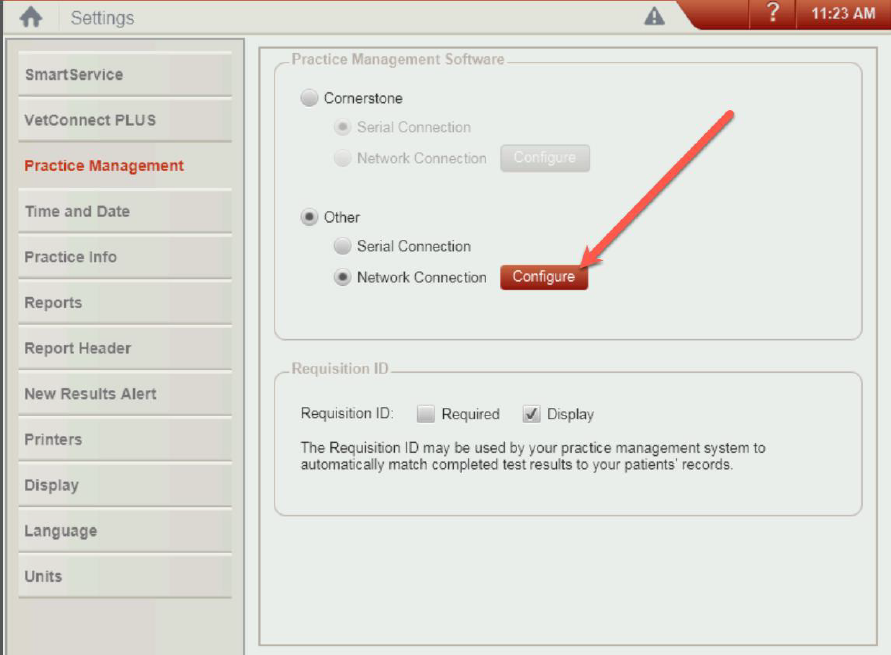
On your IDEXX instrument, go to the settings. From there, click 'VetConnect PLUS' and activate the module. Then go to the 'Home screen' section and tick 'Display Pending List'.
How do I create a request?
In the consultation record, go to the 'Examinations' tab. Using the 'Add' icon ( ) you can start a request for IDEXX VetConnect PLUS by selecting this examination type.
Next, choose the type: 'In house' (the instrument is in your practice) or 'External' (external IDEXX lab). Select IDEXX as the instrument and select the test(s) you want to perform. Hold the 'Ctrl' key to select more than one.

When you click 'Save', you are redirected to the VetConnect PLUS website where you can complete the examination. From the overview, click 'Request'.
Device list
Would you like this screen to show a logical list of instruments (e.g. a location, label, description, ...) instead of serial numbers?
Then follow the steps below in VetConnect PLUS:
How do I retrieve results?
You retrieve results in Fuga's Docu center. Click the rotating arrow ( ) to fetch the results.
In the 'Received files' table you can then find the details of the examination by clicking the link under 'Reference'. This link also remains accessible afterwards from the correct consultation record.
Please note:
- Below the link to the VetConnect PLUS website there is also a direct '(pdf)' link to the result in PDF format.
- The link to the VetConnect PLUS website will not be forwarded when you share the examination with your client or with third parties. In that case the PDF version is forwarded.
- If the practice used the old connection between IDEXX and Fuga, it is best to notify us so the old connection can be deactivated. Otherwise you will see a mix of linked and unlinked results.
Finding the serial number
The IVLS serial number is also accessible to the user and can be found via the GUI. Follow these steps:
1. Open the GUI; you arrive at the home screen - then click instruments

2. On this 'instruments' screen you can see the serial number as shown below:
