Step 1: enter into a contract with MaDict
For the integration with the CCV payment terminal, we work together with MaDict, who provide the terminals and support. To be able to use this integration with CCV, you need to provide the following details to MaDict via the email address ccv@madict.be :
* your email address
* your telephone number
* your VAT number
MaDict will then contact you to arrange the rest.
CCV will then provide you with an API key by email. Once you have received this, you need to contact MaDict. MaDict will then schedule an appointment for installation and provide the necessary information to Fuga / Sonetas.
Tip: During the installation, ask what the terminal IDs of the respective terminals are if you use several of them that need to be associated with a specific cash register in Fuga.
Step 2: settings in Fuga
You can now link the cash registers to the correct terminals under 'Settings=> Practice data=> Accounting=> CCV'. On this page, also tick CCV in the list of payment methods.
The terminal ID is linked to the cash register.
So you need to enter a cash register in Fuga (same tab in the settings).
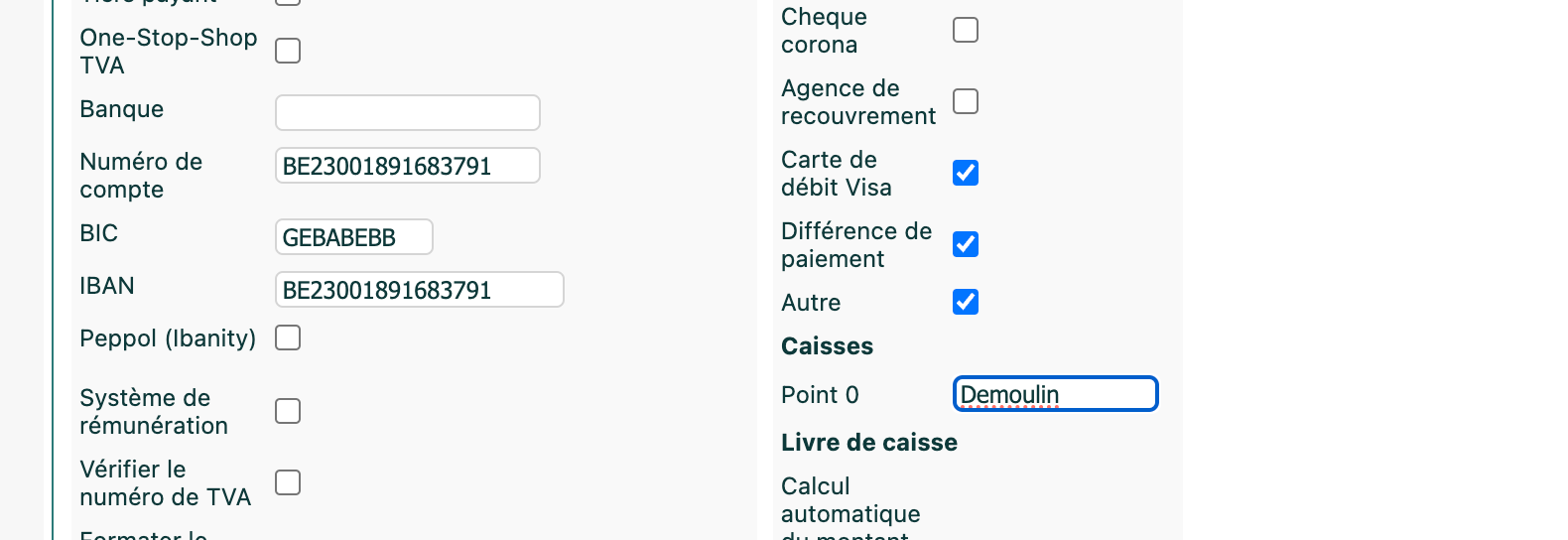
AFTER saving and putting the screen back into edit mode, you then get a Terminal ID field for each cash register in the CCV settings:
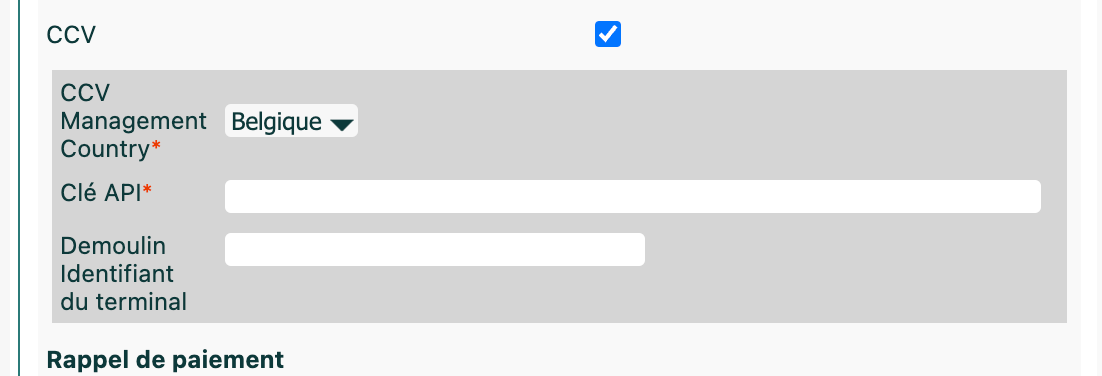
If you use terminals under different CCV contracts (usually one contract per address), you can enter a separate API key per cash register in the field '<cash register name> API key', below the Terminal ID field of that cash register. If you leave this field empty, Fuga uses the general API key of the practice. For practices with a single terminal, nothing changes. The general API key is still required to activate CCV.
The number of cash registers you can create is limited to the number of active user accounts (vet or assistant) in your practice. There is no separate limit on the number of CCV terminals: each cash register can be linked to its own terminal.
Step 3: settling up in Fuga
When you go to settle up, select the payment method 'CCV' in the selection menu.
After saving the settlement, you are immediately redirected to the CCV payment page, where an overview appears with the status of the payment and a button to still cancel the payment.
When the payment is completed (successful or failed), you are sent back to the overview of the consultation or sale. If it failed, you will see the option next to the payment request to try again. If the payment remains unsuccessful, the invoice will stay unpaid and you can have it paid afterwards (e.g. via a Payconiq QR code on the invoice). If the payment succeeded, the associated invoice is automatically marked as paid.
Please note: it is important that you do not close the CCV payment page or press 'back'. It can take up to 6 minutes before this page returns to the overview of the consultation/sale, e.g. in case of a poor connection with the terminal.
If the payment is not yet confirmed when you return to the overview of the consultation/sale, it has the status PENDING. The status is automatically updated when the payment is completed.
Possible payment statuses:
Succeeded: The payment was successful.
Failed: The payment was not successful, you can try again.
Pending: The payment is not yet confirmed, it is being processed. The status is automatically updated when the payment is completed.
Manual intervention: The payment cannot be confirmed at this time.
There are now two options:
1) assume that the payment was successful. So you do not add an extra payment (because, for example, there is a confirmation on the terminal itself). Once the problem with the terminal is resolved, the status of the payment is automatically updated.
2) You add a second payment and try again (preferably with a different payment method, since something is probably going wrong with the terminal).
Note: if the earlier CCV payment turns out to have succeeded after all, the invoice appears in the overview of clients who have overpaid and you can refund the overpaid amount. If the payment still has the status MANUAL INTERVENTION after a week, it is best to contact MaDict; they can then manually correct the payment status.
CCV payments for advance payments
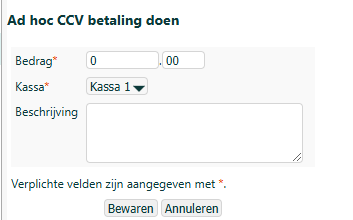
From now on, it is possible to make an advance payment via CCV.
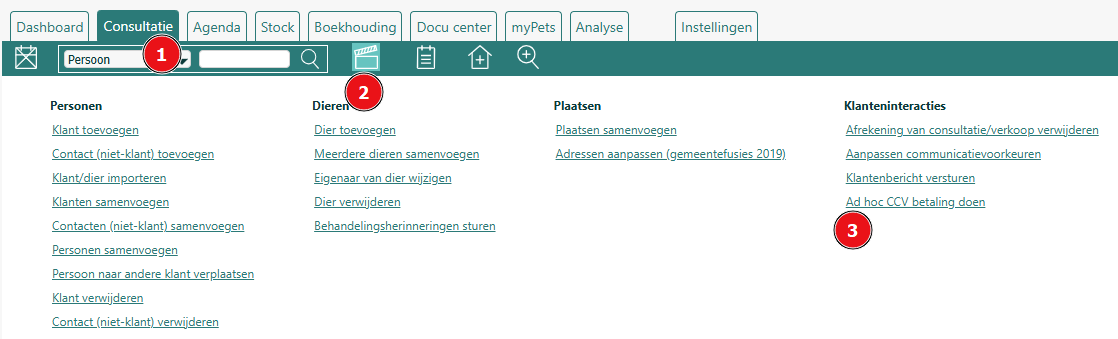
You can find this action under consultation => actions => Make ad hoc CCV payment