
Add or update products via an Excel file
Warning Using bulk updates via Excel files has an immediate impact on your Fuga environment. Errors resulting from bulk processing may not be recoverable. We strongly advise you to first perform these actions in your test environment (https://sonetas-test4.eu/fuga) and only proceed in your live Fuga after thorough review. |
Do you want to change one setting for many products at once, or add a large batch of new products in one go? With the Add or update products via an Excel file action you export your products to an Excel file, edit them there and upload the file again. Fuga then processes all changes in a single pass.
Where to find this
Go to Stock => Actions => Add or update products via an Excel file. The action is only available to users with an administrator profile.
A window opens with four steps: choose a depot, export, edit, upload.
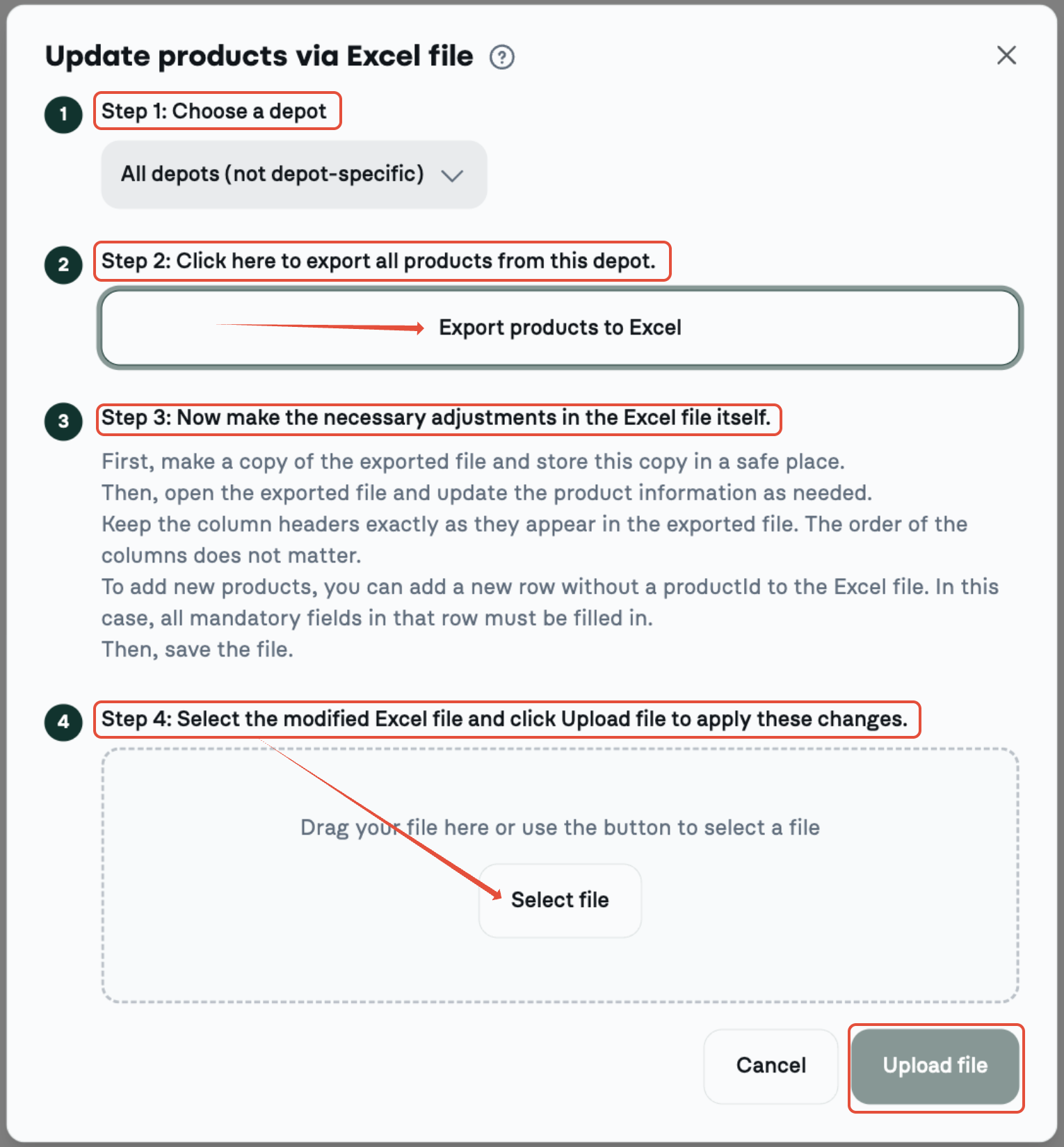
Step 1 — Choose a depot
Choose the depot whose products you want to adjust. Choose All depots (not depot-specific) for the products that are not linked to any depot. If you do not work with depots, you will not see this choice.
If you work with depot-specific products, do the export and the import per depot, and always upload the file with the same depot selected as for the export. If you choose another depot when uploading, the products in the file are moved to that depot.
Step 2 — Export the products to Excel
Click the Export products to Excel button. Fuga creates the file products.xlsx with all products of the chosen depot, including inactive ones. Always keep a copy of this exported file, so you have a backup of the data as it was.
Each piece of data sits in its own column. The column headers are technical names in English, for example id, name, type, vatPercentage, priceDetermination. There is also a name column for each client language of your practice (e.g. nameDutch, nameFrench). Choice fields appear as a drop-down list to pick from, yes/no fields contain the values true or false, and fields that are empty in Fuga show as an empty cell.
Step 3 — Make the changes in the Excel file
Open the exported file and edit the product info where needed. A few guidelines:
- Keep the column headers exactly as they were exported. The order of the columns does not matter.
- You add a new product with a new row without an id. Then fill in at least name and vatPercentage, and preferably also type, priceDetermination, outgoingUnit and nbrOfOutgoingUnitsPerProduct.
- Columns you do not want to change may be removed from the file.
- Rows with products you do not want to change may also be removed from the file.
- A product is only updated or created if the row contains no invalid values.
- Only use plain values, no formulas.
- The name of an active product must be unique. Two active products with the same name are not accepted.
- nbrOfOutgoingUnitsPerProduct can no longer be changed once the product is locked.
Example: to give a product a fixed price, set priceDetermination to FIXED_PRICE on the line of that product and fill in the price per outgoing unit in fixedUnitPrice.
Save the file as an Excel file (.xlsx) when you are done, not as .csv.
Step 4 — Upload the file
Drag the file into the window or click Select file, then click Upload file. A bar shows the progress. Fuga processes each row separately, so the valid products are imported even if there is an error somewhere else.
How Fuga processes your file
Existing product or new product:
- If an id is filled in, Fuga updates that existing product. If the id does not exist, the row is rejected.
- If the id is empty, Fuga creates a new product.
Empty cells: if a column is in the file and you leave a cell empty, Fuga clears that value on the product. Exceptions: an empty cell in a yes/no column (such as active or showInShop) becomes false, and an empty cell in a whole-number column (nbrOfOutgoingUnitsPerProduct, priceDeviationProvided, priceDeviationAdministered) becomes 0. An empty gain cell means no margin. So if you leave the active cell empty, the product becomes inactive. Columns you removed entirely from the file stay unchanged.
Depot: if you choose a depot when uploading, all products in the file end up in that depot. If you choose All depots (not depot-specific), an existing product keeps its own depot.
Master columns: groupId, groupPriceCategory and complianceLevel are only processed in a master practice. In other practices they are ignored.
Result of the import
After the upload Fuga shows how many products were updated, created or refused, with an overview of the rows that could not be imported. For each rejected row you see the row number, the product name and the reason. A few examples:
- the id does not exist in Fuga
- the name is missing
- the name is already used by another active product
- a choice field contains a value that is not in the drop-down list
- a value is too long or invalid
This way you immediately see which rows you need to correct, and you can upload the file again afterwards.
Below that overview, the Export incorrect products button lets you download an Excel file containing only the refused rows. This file has the same columns as the imported file, plus one extra Errors column as the very last column showing the refusal reason per row. Correct those rows in the file and re-import it — so you only reprocess the refused products.
Important
Products that were in the export but that you remove from the file are not deleted from Fuga. Leaving out a row is therefore safe. If you no longer want to use a product, set active to false.
Possible values for the drop-down lists
For these columns you pick the value from a drop-down list inside the cell itself: click the cell, use the arrow that appears and select one of the values. So you do not have to type it manually. If you still use an older file with values such as TDrug or TFixedPrice, those are accepted too.
| Column | Value in Excel | Meaning / label in Fuga |
|---|---|---|
| type | DRUG | Drug |
| ANIMAL_FOOD | Animal food | |
| ANIMAL_FOOD_SUPPLEMENT | Animal food supplement | |
| CARE_PRODUCT | Care product | |
| MATERIAL | Material | |
| MATERIAL_CONSUMPTION | Material (general consumption) | |
| PRODUCT_CONSUMPTION | Product (general consumption) | |
| ACCESSORY | Accessory | |
| SPERM | Sperm | |
| DIAGNOSTIC | Diagnostic | |
| OTHER | Other | |
| priceDetermination | FIXED_PRICE | Fixed price (fill in fixedUnitPrice) |
| GAIN_PURCHASE_PRICE | Gain on purchase price (%) (fill in gain) | |
| GAIN_GROSS_PRICE | Gain on gross price (%) (fill in gain) | |
| PUBLIC_PRICE | Public price (incl. VAT) | |
| vatPercentage | the VAT rates of your country (e.g. 0, 6, 12, 21) | Purchase VAT rate |
| outgoingUnit | the outgoing units of your practice | Outgoing unit, managed under Settings => Practice data => Stock |
| active | true | Active: yes |
| false | Active: no | |
| locked | true | Locked: yes |
| false | Locked: no | |
| defaultAsProvided | true | Default as provided: yes |
| false | Default as provided: no | |
| loyaltyCard | true | Loyalty card: yes |
| false | Loyalty card: no | |
| showInShop | true | Show in shop: yes |
| false | Show in shop: no |
Other columns
- id: empty for a new product, do not change for an existing product
- name (required), plus nameDutch, nameFrench, ... per client language
- vatPercentage (required for a new product)
- label, description, cnk, ean
- publicPrice, grossPriceExclVat, fixedUnitPrice (amounts)
- gain (profit margin in %, whole number)
- nbrOfOutgoingUnitsPerProduct (whole number)
- priceDeviationProvided, priceDeviationAdministered (price deviation in %)
- surchargeProvided, surchargeAdministered (surcharge in euro excl. VAT)
- atcVetCode, siAbvCode, vetpointProductId
- groupId, groupPriceCategory (master practice only)
- complianceLevel (Compliance level, master practice only): GREEN, YELLOW, BLUE, ORANGE or RED
Manual method
To adapt a product manually, go to the Stock tab. Search for the product and then select the 'edit' icon.

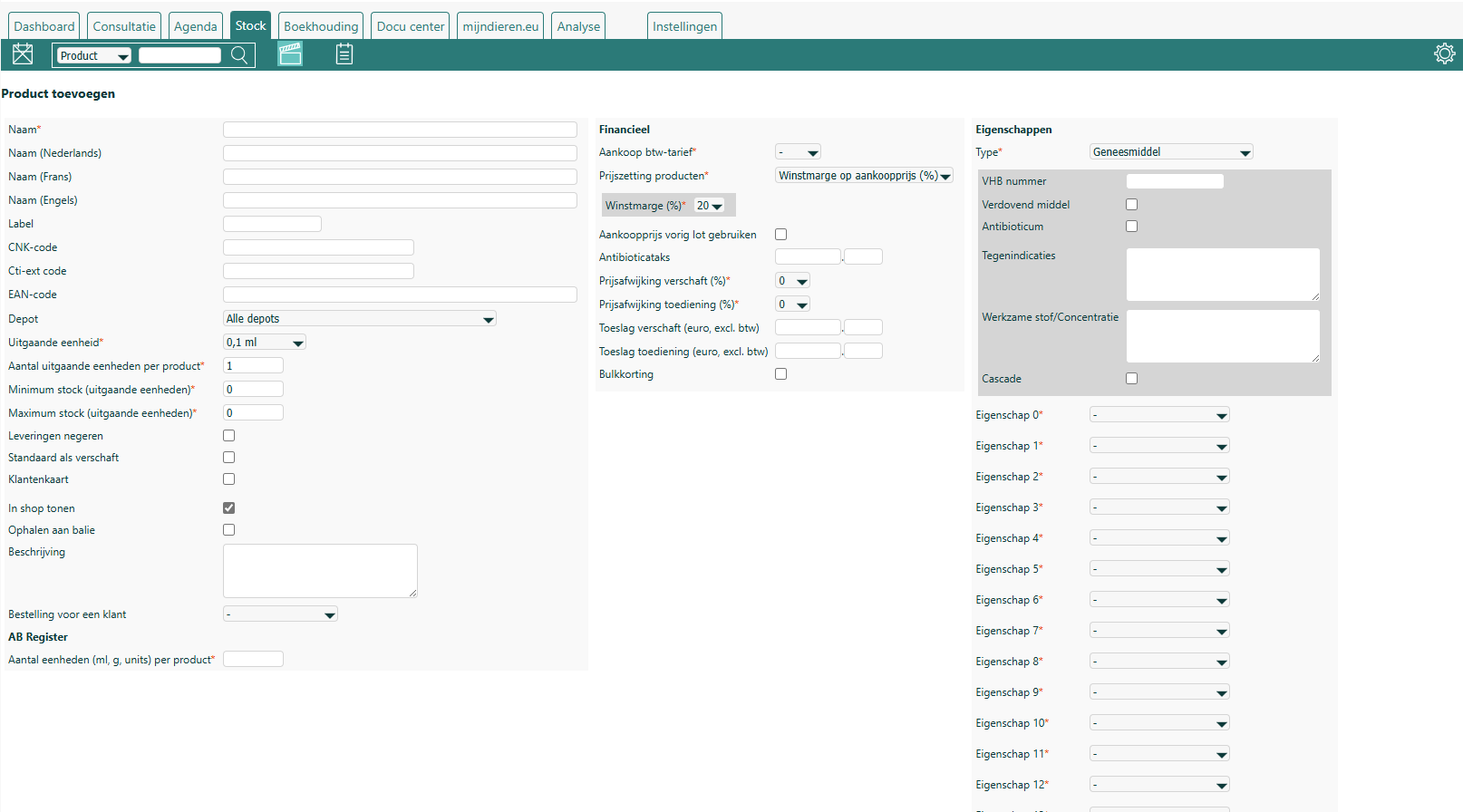
A new screen appears showing all the data already entered for the product. Here you can adapt various product details. Some specifications cannot be changed once the product is locked (the number of outgoing units, the outgoing unit). The name, the CNK code and the price determination are required and cannot be left empty.
- Name - The name of the product, optionally in several languages. For automatic ordering and reading in of deliveries it is important not to change this name. One exception is allowed: you may precede the name with a prefix separated from the original name by an '_'. This lets you call up products with your own shortcuts.
- Label - A free field that lets you divide products into categories at your discretion. In the Outgoing register report you can search on this label (it does not have to be the full label), which allows a hierarchical classification (e.g. searching 'A3' returns A3, A3A and A3B).
- CNK code - The CNK code of the product.
- EAN code - The European Article Number found under the barcode; a unique characteristic of a product (not of a lot). Codes can be added via the action 'Add EAN code'. Once added, you can also dispense products by scanning the code.
- Depot - If you work with several depots, you can make the product definition depot-specific (different pricing, min/max stock, etc. per depot). Leave empty if you do not want different settings per depot.
- Outgoing unit - The unit in which this product is used. Units are defined under Settings => Practice data => Stock, or select 'New' in the list.
- Minimum/maximum stock (outgoing units) - The minimum stock triggers a low-stock warning; the maximum stock is used when reordering. Expressed in outgoing units.
- Ignore deliveries - If ticked, Fuga will not read in deliveries of this product.
- Supplied by default - Indicates whether the product is primarily intended for sale or for administration; used as the default in the consultation when adding 'Outgoing products'.
- Loyalty card / Show in shop / Use purchase price of previous lot / Order on behalf of the client
- Financial
- Purchase VAT rate - The VAT rate applicable to the product at purchase. If the wholesaler's VAT rate does not match the one in Fuga, you get an error message. It is best to leave this unchanged.
- Price determination - Select how the price is determined.
- Price deviation provided (%) - A price deviation when supplying the product; can be positive or negative.
- Price deviation administration (%) - A price deviation when administering the product; can be positive or negative.
- Surcharge administered (euro) - Adds a fixed amount when a product is administered via 'Products' in the consultation, independent of the administered quantity. Spread proportionally over the lots used. For products used via a protocol you can choose whether or not the surcharge is applied. 'Bulk discount' and 'Price deviation administration' do not affect this surcharge; the client-level 'Services reduction' does apply.
- Surcharge provided (euro) - Adds a fixed amount when a product is supplied/dispensed.
- Bulk discount - Lets you define five levels of bulk discount per product (from how many outgoing units the discount applies and which percentage). Note: quantities added separately are not summed for a higher bulk discount.
- Type