
Fuga has an interface with SI ABV for the antibiotics registration for:
- individual treatment of farm animals
- individual treatment of companion animals
- 'remise à titre de stock'
Registration records are made automatically and stored in the To be submitted to SI ABV report, from where the user can manually do the export.
Group treatments of farm animals need to be registered with the SI ABV web application, not through Fuga.
How to set up the SI ABV registration
Enable SI ABV antibiotics registration for your practice
The following fields need to be configured in the practice settings:
- on tab General, in the Regions section: select the Switzerland checkbox to indicate that your practice is active in Switzerland
- on tab Switzerland, mark checkbox SI ABV
- on your practice location: enter the SI ABV token for your practice
If your practice has more than one location, you also need to enter the SI ABV appendix for each location in the practice data.
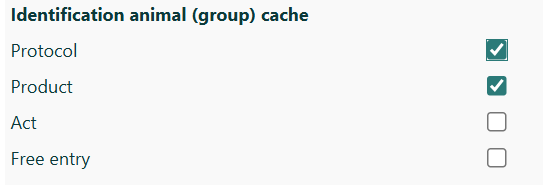
To make sure that the identification of the treated animal is available and automatically filled, you need to mark the checkboxes product and protocol on your personal preferences, tab General:
Enter relevant SI ABV information in Fuga
Product
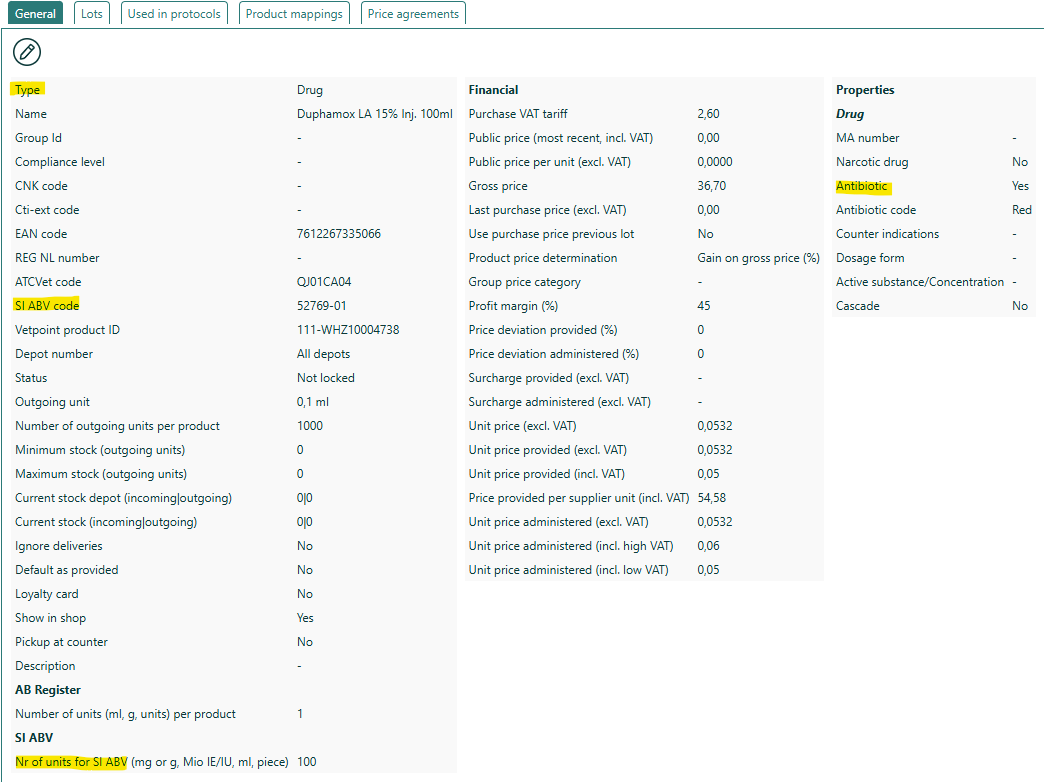
When you use antibiotics with a SI ABV code in a consultation or sale for an animal with a SI ABV category, a record for SI ABV registration will be made. The following information needs to be filled on the product:
- product type: drug
- antibiotic: yes
- SI ABV code
- Nr of units for SI ABV
Animal (group)
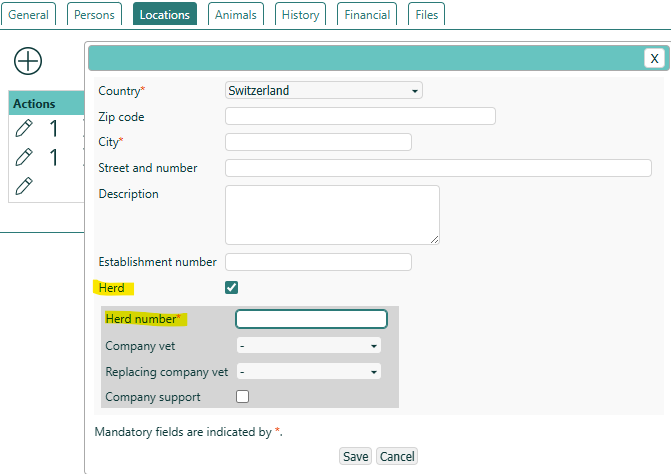
The registration will be done for animals with a main address in Switzerland. For animals categorized as farm animals at SI ABV, it is mandatory to enter a herd number on this address. If there are multiple herds on one location, you need to create multiple locations.
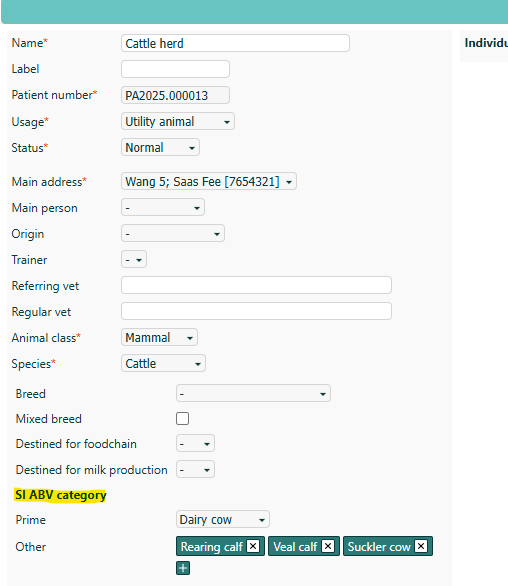
Next to that, the animal needs to have a SI ABV category. If for a species, there is only 1 category in SI ABV, then this category will automatically be filled when you create the animal. If multiple SI ABV categories are available for a species, you can specify the prime category (this category will by default be used) and other categories that are present in the herd:
Use product in a consultation/sale
When using a drug with SIABV code in a consultation/sale for an animal with a SI ABV category, you need to fill the fields relevant for the SI ABV registration:
- SI ABV category: by default, this is the prime category set on the animal (group). You can:
- change this value into another category set in the other field on the animal
- always choose Other pets if needed
- choose - if no SI ABV reporting is needed
- If there is no SI ABV category entered here, no registration will be created!
- Posology
- enter the number of outgoing units per administration per animal
- Fuga will use the first found number value from this field
- example: 12 pills --> 12
- Treatment period
- enter the treatment duration in days
- Fuga will use the first found number value from this field
- example: 5 days --> 5
- Identification animal (group)
- if it concerns a sale, the identification of the animal is very important.
- if filled, it is considered to be a treatment for a specific animal (group) and will be registered as treatment
- if not filled, it is considered to be a remise à titre de stock
- if it concerns a sale, the identification of the animal is very important.
- Number of treated animals
- Fuga will set default value 1 when you use a product with SI ABV code, this value needs to be corrected if it concerns more than one animal
- Administration frequency
- Diagnosis
For the treatment of companion animals, the weight (in kg) entered on the consultation will be used in the SI ABV registration. If it concerns a sale, you can enter the (average) weight directly on the record that needs to be submitted to SI ABV.
Tip: when adding a product to consultation, make sure you keep in mind how it should be registered in SI ABV. For example:
when the same product should first be administered 2x/day and then 1x/day, you should add the product twice:
- one with administration frequency 2x/day and with the correct number of outgoing units
- one with administration frequency 1x/day and with the correct number of outgoing units
How to register antibiotics use via the integration with SI ABV
Register antibiotics use or sale to SI ABV
When you lock a consultation where an antibiotic with SIABV code is used, Fuga will automatically create a record in the To be submitted to SI ABV report (available on tab Stock).
The Send to SI ABV button above this list allows sending all records at once (for example at the end of the each day). If there are problems sending a record, the record will remain in the To be submitted list and the Remark will show why it cannot be sent. You then need to correct the record via the Edit button and afterwards try to re-export it (see next chapter).
Fuga decides based on the information of the consultation/sale what registration will be done at SI ABV:
- individual treatment of farm animals
- this reporting is only allowed for small groups of farm animals (see https://www.blv.admin.ch/blv/fr/home/tiere/tierarzneimittel/antibiotika/isabv/psw.html).
Fuga checks the number of treated animals to decide whether a registration can be done by the Fuga integration. If not the following warning is shown: The number of treated animals is too high. This prescription should be registered as a group treatment directly in the SIABV app.
The records with this warning should be registered directly in the SI ABV web application, not through Fuga. Once this is done, the user can manually delete these records.
- this reporting is only allowed for small groups of farm animals (see https://www.blv.admin.ch/blv/fr/home/tiere/tierarzneimittel/antibiotika/isabv/psw.html).
- individual treatment of companion animals
- 'remise à titre de stock'
Correct an antibiotics registration
Records shown in the To be submitted to SI ABV list can still be corrected: choose edit to open a form where you can update the information. The information will be updated in the consultation/sale and you can try again to export.
When a record is already sent to SI ABV and needs correction, you can go to the Submitted to SIABV list and use the Deactivate at SI ABV button to cancel this registration at SI ABV. This will:
- send a message to SI ABV that this registration is cancelled
- create a new record in the To be submitted list, where you can make the required corrections and
- send it again or
- delete the record from this list if the registration is not needed.