
You can use Fuga to fill the shopping basket in Vetpoint. The order needs to be finalized on the Vetpoint website. Once this is done, you can set the ordered products to delivered and start using them.
Enable Vetpoint functionality
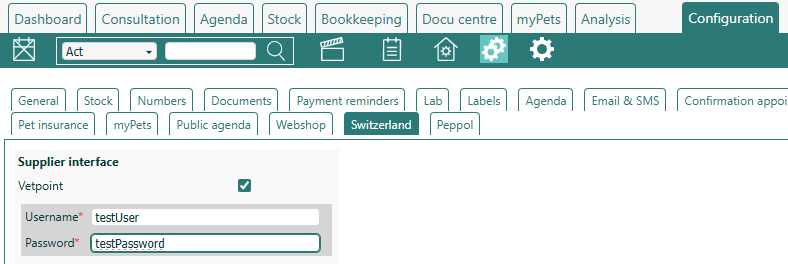
To enable the Vetpoint functionality, make sure the following fields are well configured in the practice settings:
- on tab General, in the Regions section: mark checkbox Switzerland to indicate that your practice is active in Switzerland
- on tab Switzerland:
- select the Vetpoint checkbox
- enter the credentials that your practice uses to log on to the Vetpoint website.
Every night, we automatically import the catalog from Vetpoint and make it available in Fuga.
Order products from the Vetpoint catalog
A generic explanation about how to order products can be found here: https://sonetas.freshdesk.com/a/solutions/articles/42000046218?lang=en
To make an order, choose the action Add order on tab Stock and choose Vetpoint as a supplier interface.
Vetpoint products that have reached the minimum stock are automatically proposed. You can also add products from the Vetpoint catalog to the shopping basket.
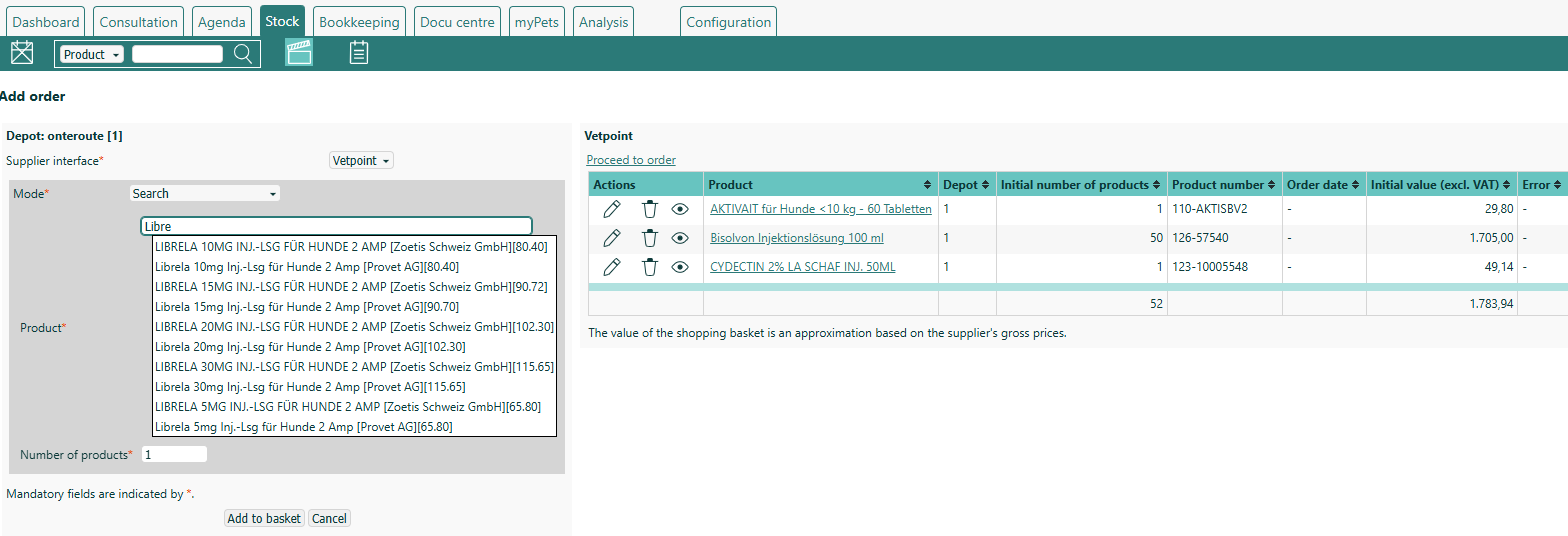
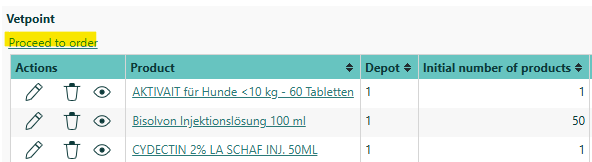
Once the desired products are in the basket, push the Proceed to order button, which brings you to an overview page with all products that need to be ordered.
Clicking on Order will fill the shopping basket in Vetpoint.
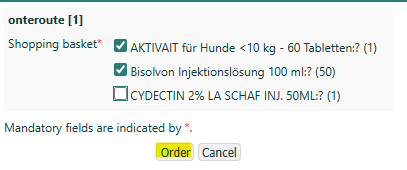
If the product is successfully added to the Vetpoint basket without error, the product is removed from the shopping basket in Fuga and a lot is automatically created for the ordered products.
Errors
If for some reason, an error is returned by Vetpoint, this error will be shown in Fuga. For example, if your credentials are not valid, you immediately see this error when clicking on Order.
Some errors concern a specific product from the shopping basket, for example:
- you don't order the minimum quantity for a product or
- you order 0 products or
- the product you order does not exist in Vetpoint
If that is the case, Fuga will keep the product in its shopping basket where you can see why it could not be added to the Vetpoint shopping basket. You can then either correct the line (for example put the minimum quantity) or remove it from your Fuga shopping basket.

Attention
Filling the shopping basket in Vetpoint is not the same as making the actual order. To finalize the order, you need to log on to Vetpoint and finalize the order on the filled shopping basket here. Any changes you would make to the shopping basket in Vetpoint do not flow back to Fuga. To avoid discrepancies, we recommend that you immediately finalize the order in Vetpoint.
Set products to delivered
When products are ordered at Vetpoint from a Fuga shopping basket, a lot is automatically created for them in Fuga (with its order date, date expired, supplier, number of products, purchase price).
When the supplier delivers the products, go to the Not-shipped orders report on tab Stock. Here you find the products that you sent from Fuga to the Vetpoint shopping basket. To be able to use these products:
- set each delivered product lot to delivered. Fuga will automatically set today as delivery date.
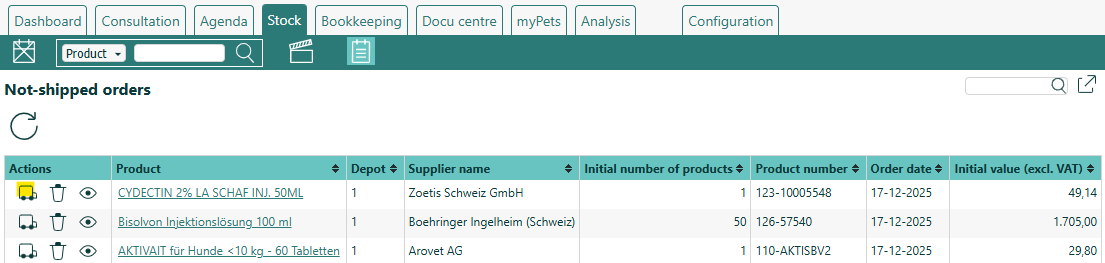
- correct the initial number of products or date expired if needed.
Remarks
- Suppliers from Vetpoint are added to Fuga automatically. Only the name and Vetpoint number of the supplier are imported, but you can choose to complete the supplier information in Fuga.
- New suppliers which start to offer their products via Vetpoint after December 2025, will have the supplier number as name.
To add their name, you can go to tab stock and search for all suppliers: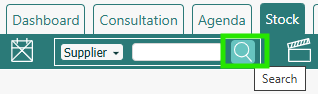 Select the supplier that has no name and choose edit to add the name on the supplier page.
- New suppliers which start to offer their products via Vetpoint after December 2025, will have the supplier number as name.
- When you Import product from wholesale catalog or when you add a product to the basket in the Add order screen, only a few basic Vetpoint fields are filled in for the product:
- Name
- Product type
- ATCVet code
- SI ABV code
- EAN code
- Vetpoint product identifier
- VAT rate
- Gross price
- You still need to complete the product in Fuga (for example the number of outgoing units, antibiotic or not, waiting times, number of units per product for SI ABV ..)
- Fuga uses the Vetpoint Swissmedic number to fill in the SI ABV code on the product. If the Swissmedic number has the format [6 digits]-[2 digits]-[3 digits], then the SI ABV code is calculated as follows: [last five digits of the first number]-[2 digits].
- Example: Swissmedic number 036732-01-016 will result in SI ABV code 36732-01
- Make sure to doublecheck this number against SI ABV as Sonetas is not responsible for the information received
- When a product has the same name as in Vetpoint and its Vetpoint ID is filled, Fuga can find its information in the catalog. When you use the command Update gross/public price and vat via catalog supplier, the price for this product will be imported.
- The same product can sometimes be sold by more than one distributor, resulting in different prices
- When you order a product, the price on the product will be updated with the catalog price for the ordered product.