).
).Depending on which option you have selected under 'Start form mode' under Settings => My preferences => Layout => Client interaction, Fuga will open the start form with general details (see screenshot below). Either you always/never proceed to the start form, or only when multiple animals can be added (if the client has multiple animals and your preference under Settings => My preferences => Default values is set to 'Single animal' or 'Multiple animals'). You can always adjust these details in the consultation itself.
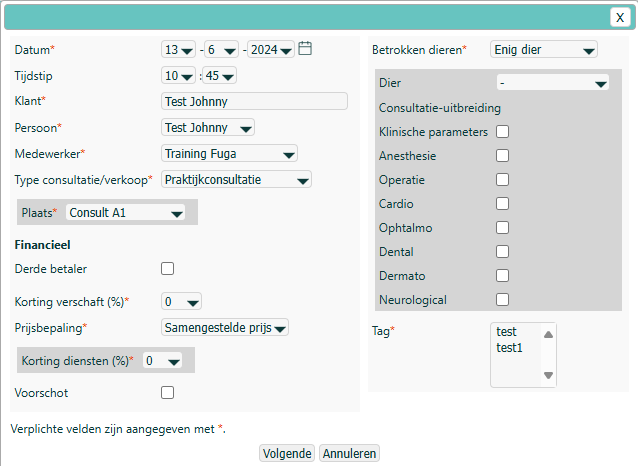
If you choose a single animal (the usual case), you can specify consultation extensions. This selection provides extra tabs for entering the details of specific examinations. Read more about this topic below.
If you select the 'Multiple animals' option under 'Animals involved' in this form, you can treat several animals in a single consultation. This works when the animals have the same anamnesis, or for example for a simple vaccination. What we advise, however, is to create a separate consultation file for each animal. That way a clear history is kept per animal and there is no ambiguity about which protocol was applied to which animal, etc. How you can do that is explained below.
Consultation file
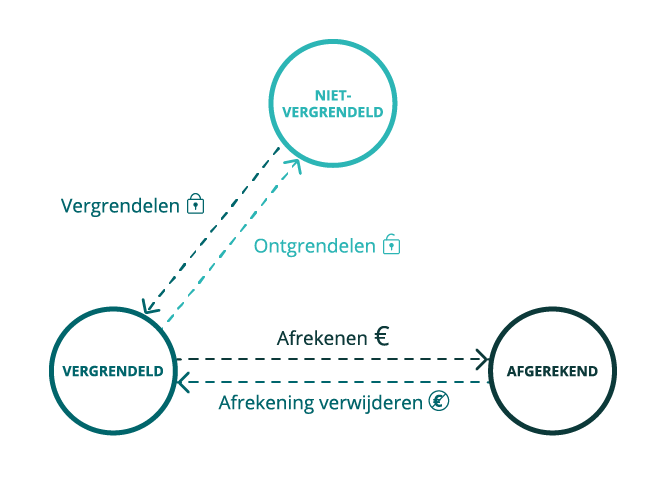
There are three states a consultation can be in, namely:
- Unlocked (
 )
) - Locked
- Settled
Breadcrumb of the consultation

In the breadcrumb of the consultation (see screenshot above) you will find the following icons:
- Edit (
 ) - With this icon you can adjust the general information of the consultation, such as the animal(s) involved, the consultation extensions, the advance payment, etc.
 - Lock (
 ) - This icon is only visible when the consultation is unlocked. By clicking this icon, you lock the consultation, which means you can no longer change anything in this consultation that affects the price. This does not apply to files, which can always be added. When locking, you can also still change the quantities of products and acts used in protocols. You are then also given the option to adjust the animal's status. It may already have been adjusted automatically based on the definition of the protocols used. See below for more information.
 - Unlock (
 ) - This icon is only visible when the consultation is locked. By clicking this icon, you unlock the consultation and thus make it editable again.
 - Delete (
 ) - This lets you delete the consultation, at least if it is not locked.
 - Save as quote (
 ) - This lets you save the consultation as a quote. The file then ends up under the 'Files' tab in the client file. Do not forget to delete the consultation afterwards, so that it does not affect your stock.
 - Dosage label (
 ) - By clicking this icon, you can print product labels. You will find more information on this page.
 - Dosage labels (
 ) - By clicking this icon, you can create multiple dosage labels at once, or select for which products this should be done. You can also enter a posology here. You will find more information on this page .
 - Consultation label (
 ) - By clicking this icon, you can print consultation labels. You will find more information on this page.
Under the breadcrumb of the consultation you will find the tabs below, which you can use to complete the consultation: Settings => My preferences => Breadcrumb.
Clinic
In this tab you enter all clinical information. The option 'Use 'Services and products' as default tab' under Settings => My preferences => Layout => Client interaction determines whether, when creating a consultation, you go directly to this form, or first to the 'Services and products' tab (see below).
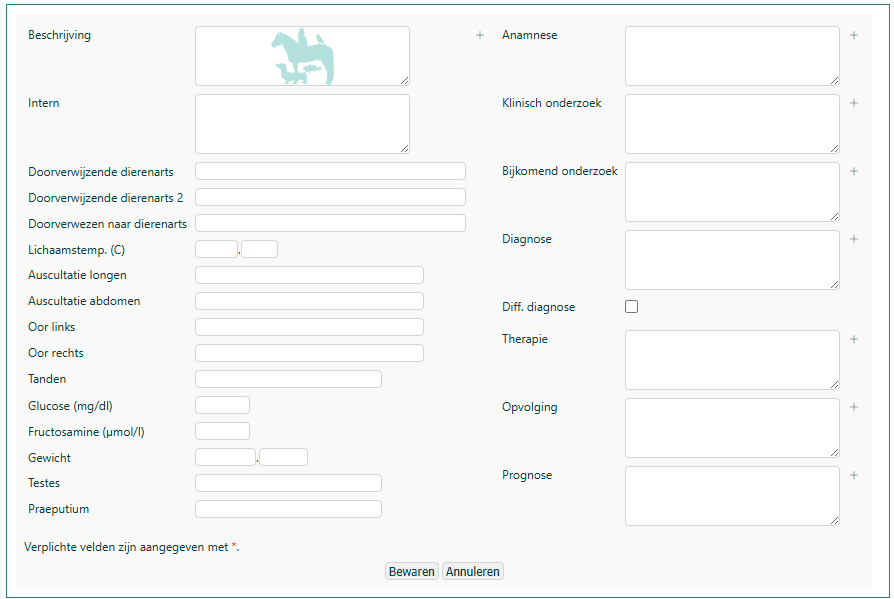
Under Settings => My preferences => Layout => Consultation Clinic you can indicate which text fields and parameters (for example the weight) you want to add to this form. When you set the height of a field to '0', the text field will disappear from the 'Clinic' tab.
You can also enter whether the client was referred by a colleague veterinarian. This is handy if, for example, you are on call and you want to distinguish between your animals and those of the colleague veterinarian (for example for a mailing or to forward reports). You can do the same when you refer to a veterinarian.
You can attach a default template to the fields on the right, such as Anamnesis - Clinical examination - Additional examination - Diagnosis - Therapy - Follow-up - Prognosis. You can then click the + next to the field. If you have created this template as a Text field template type, it will become visible here. You can find here how to create a template: How do I add a template?
Services and products
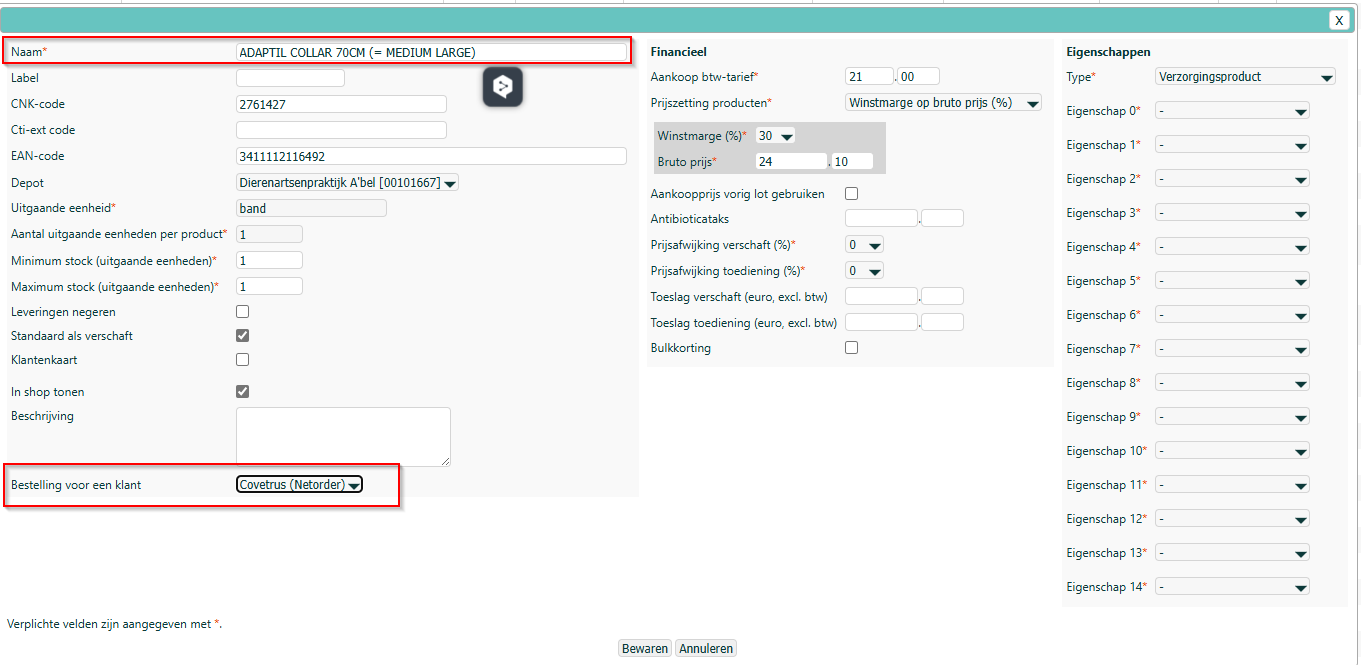
In this tab you can add the performed services (protocols, acts and free entries) and products to the consultation. You do this by clicking the 'Add' icon ( ). You can also enter a product and free entry by scanning them in via either a barcode or a QR code. Read more about labels on this page.
With the shopping basket you have the choice whether to order a certain product that is no longer in stock for the client.
In that case you do have to indicate at product level that it should be ordered. This is only possible if there is an interface with the supplier where you place your orders.
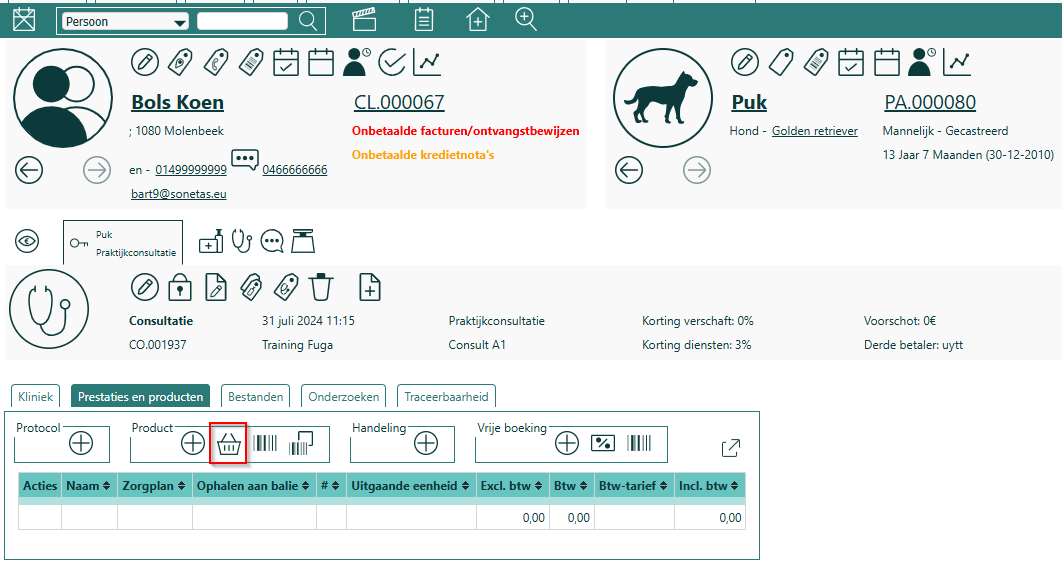
You will only see the protocols and acts that are relevant for the treated animal species. And if the consultation is for multiple animals, you can change the number of times you have performed the protocol or act. You can read more information about protocols here and more information about acts here.
When locking the consultation, it is possible to assign multiple treatment and/or vaccination protocols to a single animal file. That is particularly handy when vaccinating a herd where there is no separate file for each animal, but for which you still want to create a treatment status and associated reminders.
Note: vaccinating a litter of puppies, for example, is a different case. Here you normally do not want to create a treatment status and associated reminders, which is why it is better to use a protocol of the 'General' type.
Under the free entries you can book extra items that are not described as a protocol, act or product. The amount of the free entry can also be negative. You can use this, for example, to settle discount vouchers.
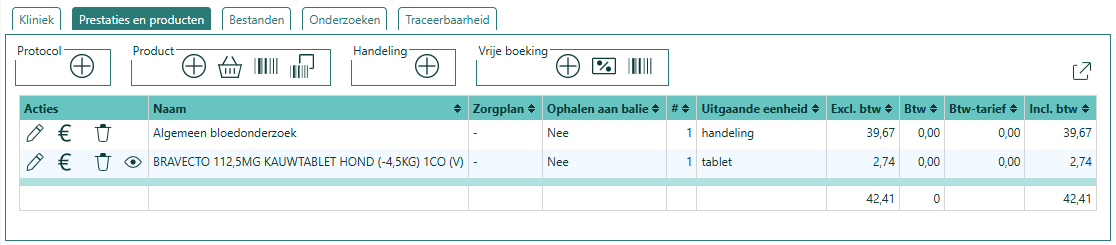
Under Settings => My preferences => Layout => Client interactions you can use the option 'Show services and products in 1 table' to determine whether you want to show the services and products in a single table (as in the screenshot above), or in separate tabs.
And also under Settings => My preferences => Layout => Client interactions you can set whether you want this tab to open as the first tab by default (instead of the 'Clinic' tab).
Files
In this tab you can view the files linked to the consultation. By clicking the @ above the table, you can email multiple files at once to the parties involved.
With the 'Create file from template' icon ( ) you can generate files that contain the details of the consultation, such as a lab request, a TVD, a visit report, a referral report, etc.
Under Settings => My preferences => Default values you can set which template is configured as the default.
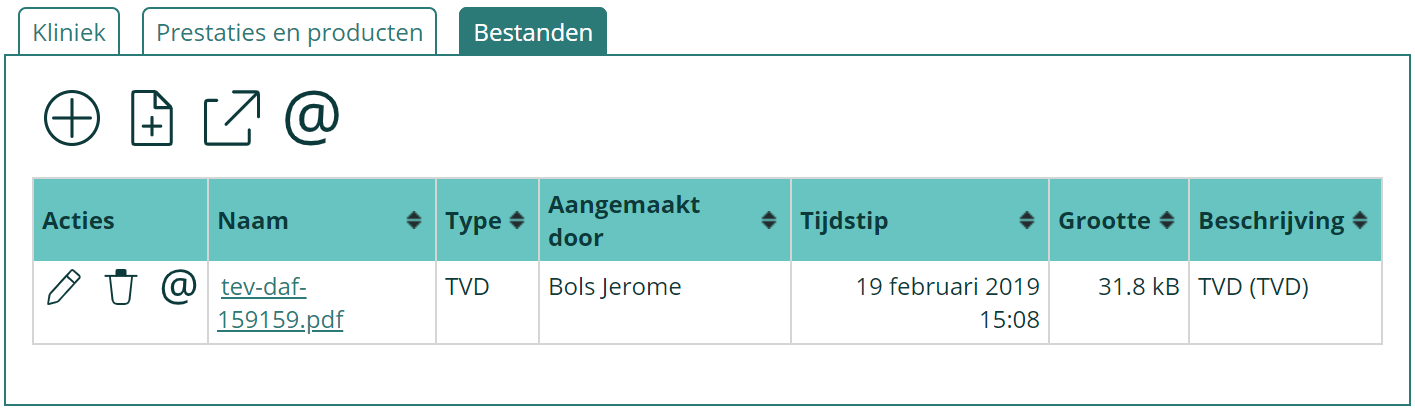
If you decide to refer an animal, you can create and email a referral letter this way. In addition, under this tab you can create a file with client and animal details that can be read in by the colleague veterinarian, in order to then add the client and animal to his/her Fuga. You can create that file by clicking the 'Create export file with client/animal info' icon ( ). You can then email the file together with the referral letter and other relevant documents. This new file contains no history. The recipient of this file can then import this file into his/her Fuga via the action Import client/animal under the Consultation tab.
Consultation extensions
When creating the consultation or when you click the 'Edit' icon ( ) in the breadcrumb of the consultation, it is possible to choose various extensions. Fuga includes the following consultation extensions: Clinical parameters, Anaesthesia, Surgery, Cardio, Ophthalmo, Dental and Dermato, Neurological. When you activate them, they appear as extra tabs within the consultation.

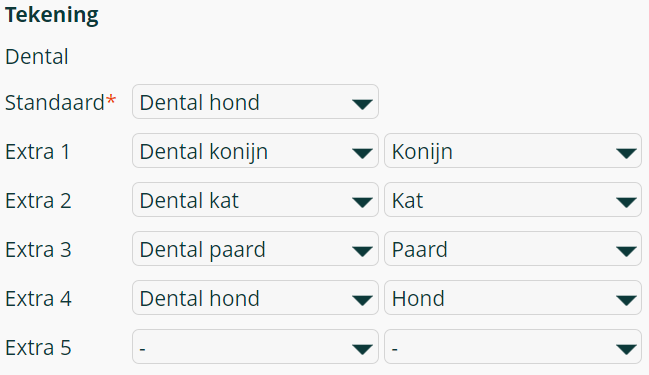
Under Settings => My preferences => Default values you can tick whether/which consultation extensions are selected by default in the consultation. You can also choose a default drawing per consultation extension here (at least if drawings are relevant), and you can add drawings per animal species.
Traceability
This shows when and by whom a sale/consultation was created, locked and settled.
For single-person practices this tab makes little sense. That is why an option has been added not to show the tab: Settings => My preferences => Layout => Client interaction => Show traceability info.
Financial
Here you will find all financial details linked to the consultation: whether or not the invoice has been paid, the settlement method and date, the invoice itself and any note on the invoice.
In addition, you get the financial overview of the consultation. The protocols, products, acts and free entries are sorted in the overview as you have set in Settings => Practice preferences => Documents => Invoices. In that location in the settings you can also adjust other preferences relating to invoices. At the bottom you can see the totals, including and excluding VAT.
This tab is only visible after you have settled the consultation.
Multiple animals
If you want to treat multiple animals, you can add a new client interaction via the four icons in the right-hand corner. At this stage it is not yet mandatory (but possible) to lock the first consultation. This way you can easily switch between the different client interactions by clicking the tabs.

Below are all available client interactions:
 )
) )
) )
) )
)You can repeat this procedure until all the client's animals have been treated. And ultimately you collect an overview of related client interactions this way. Concretely this means that here you see all client interactions that have the same client, date and settlement status. The settlement status can be 'not settled', 'settled on the same invoice/receipt' or 'settled as not charged'.
You can request the financial overview of the set of client interactions at any time by clicking the 'Financial overview' icon ( ).
).
How do I settle the consultation?
To settle a consultation, two steps need to happen. First you have to lock the consultation before you can actually settle it. When locking, the consultation is automatically placed on the client's running account. So, if you enter multiple consultations for the same client, you lock consultation after consultation. At the end you settle, and you will see that all unsettled consultations will be listed.
- As a first step you lock the client interactions one by one with the 'Lock' icon (
 ) at the top. An unlocked consultation or sale is indicated by the key (
 ) in the corresponding tab. You can also lock before you add a new client interaction. Afterwards you can always unlock the consultation (
 ), to change it.
On the one hand, this step performs a few non-financial actions in the background, on the other hand you get the option to add or adjust some details. Below is an overview:- You get an overview of all products used.
- When locking you can adjust the product and act quantities of a protocol.
- If the animal is undergoing a treatment, it is indicated which animal it concerns and what the next treatment date is. That is important for the vaccination and other reminders.
- The animal's status is adjusted, if relevant. When, for example, you have applied a protocol in which the animal was euthanised, the status will change to 'Euthanasia'.
- The animal's sterilisation status is adjusted, if relevant. When, for example, you have applied a protocol in which the animal was sterilised, the sterilisation status will change to 'Sterilised'.
- When you hospitalise the animal in a certain kennel during the consultation, the animal will be virtually assigned to that kennel.
- Locking the consultation is a trigger to register certain antibiotics. In that case the product is placed on the list of the corresponding registration institute.
- If applicable, the products from the consultation are placed on the client's loyalty card.
- If applicable, the products are registered with Royal Canin.
- Once you have locked at least one client interaction, you will get the option to settle and thus to create an invoice or receipt. You do this by clicking the 'Settle' icon (
 ).
).
When settling you get an overview of the locked consultations or sales in which the current related set is ticked. If there is only one consultation or sale in the related set, no overview is given anymore. In that case you get a warning if there are still other (unrelated) consultations or sales on the running account. You also get a warning if you settle a related set and there are still consultations or sales in this set that are not locked.
Just like locking, settling performs a few financial actions in the background and in this step you can still add or adjust some details. Below is an overview:- You enter the settlement method and date. You can put the consultation on an invoice or receipt, or you can choose not to charge the consultation. On this page you will find more information about the ways in which you can settle a consultation.
- You can enter an insurer for the animal.
- If applicable, the consultation is registered with SantéVet.
- You can register one or more payments (cash register, payment method and comment).
- You can enter a third-party payer.
- If you use 'early payment discount' and the payment on this settlement is on time, then a sale is created in the background to settle this discount.
- You can write a comment on the invoice or receipt.
Once the invoice has been created, you can show the invoice ( ), email the invoice or receipt (
 ) and delete the invoice (
 ). If you delete the invoice or receipt, the linked consultation(s) will remain locked.
Please note: when you delete an invoice, this can cause a gap in the invoice numbering. This will be indicated with a red warning. Read here how you can resolve such a gap.