
Automatic way
If you import a delivery document (see below) and no matching product description exists yet, it will be added automatically and will appear in the Underspecified products report.
In addition, using the action Import product from wholesaler catalogue you can import a product from a wholesaler's catalogue. This immediately gives you the correct spelling. The available data (CNK code, VAT, prices, etc.) is copied over as much as possible.
You fill in the rest of the product file manually, as described below.
Add or update products via an Excel
Warning Using bulk updates via Excel files has an immediate impact on your Fuga environment. Errors resulting from bulk processing may not be recoverable. We strongly advise you to first perform these actions in your test environment (https://sonetas-test4.eu/fuga) and only proceed in your live Fuga after thorough review. |
Do you want to change one setting for many products at once, or add a large batch of new products in one go? With the Add or update products via an Excel file action you export your products to an Excel file, edit them there and upload the file again. Fuga then processes all changes in a single pass.
Where to find this
Go to Stock => Actions => Add or update products via an Excel file. The action is only available to users with an administrator profile.
A window opens with four steps: choose a depot, export, edit, upload.
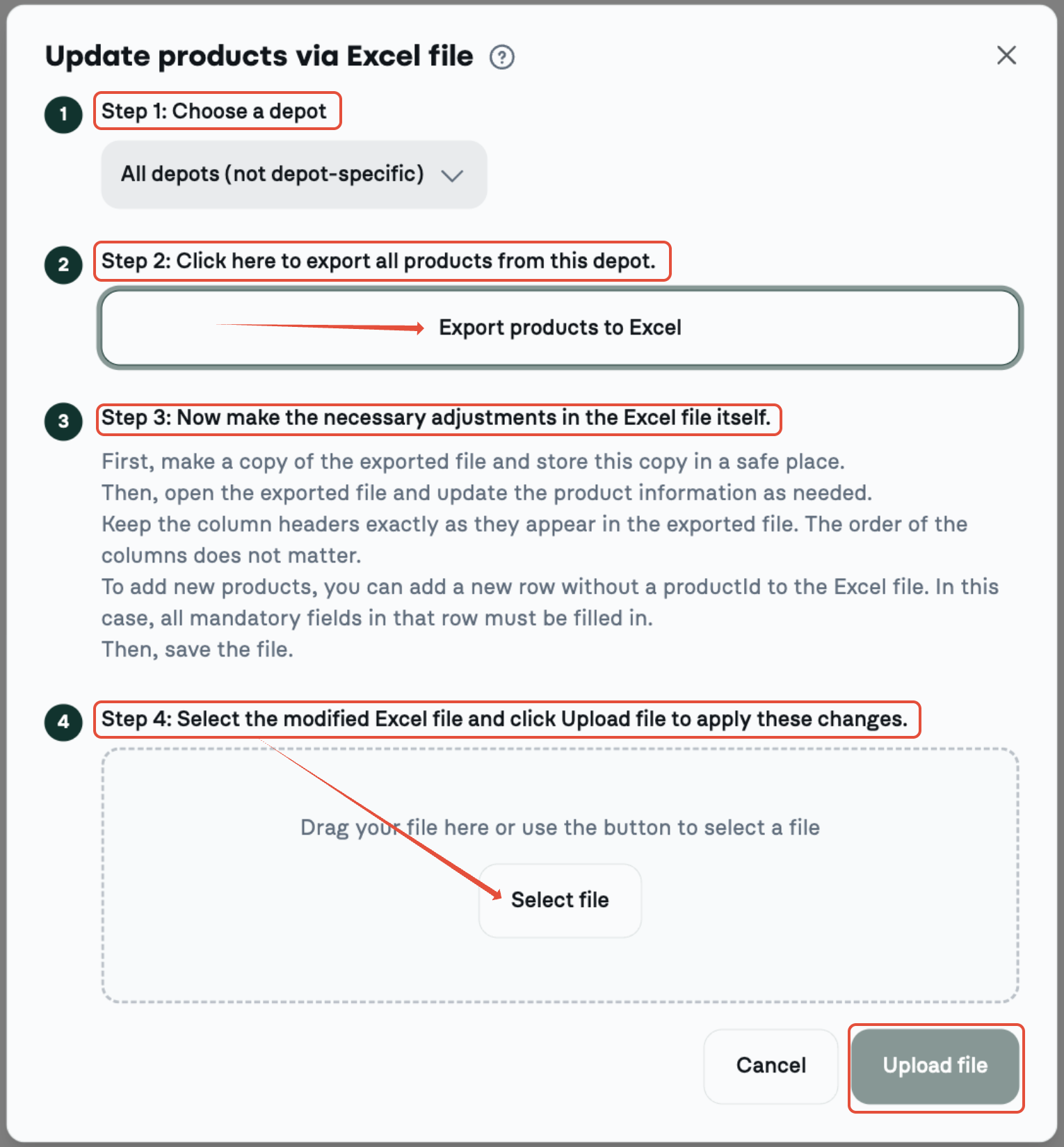
Step 1 — Choose a depot
Choose the depot whose products you want to adjust. Choose All depots (not depot-specific) for the products that are not linked to any depot. If you do not work with depots, you will not see this choice.
If you work with depot-specific products, do the export and the import per depot, and always upload the file with the same depot selected as for the export. If you choose another depot when uploading, the products in the file are moved to that depot.
Step 2 — Export the products to Excel
Click the Export products to Excel button. Fuga creates the file products.xlsx with all products of the chosen depot, including inactive ones. Always keep a copy of this exported file, so you have a backup of the data as it was.
Each piece of data sits in its own column. The column headers are technical names in English, for example id, name, type, vatPercentage, priceDetermination. There is also a name column for each client language of your practice (e.g. nameDutch, nameFrench). Choice fields appear as a drop-down list to pick from, yes/no fields contain the values true or false, and fields that are empty in Fuga show as an empty cell.
Step 3 — Make the changes in the Excel file
Open the exported file and edit the product info where needed. A few guidelines:
- Keep the column headers exactly as they were exported. The order of the columns does not matter.
- You add a new product with a new row without an id. Then fill in at least name and vatPercentage, and preferably also type, priceDetermination, outgoingUnit and nbrOfOutgoingUnitsPerProduct.
- Columns you do not want to change may be removed from the file.
- Rows with products you do not want to change may also be removed from the file.
- A product is only updated or created if the row contains no invalid values.
- Only use plain values, no formulas.
- The name of an active product must be unique. Two active products with the same name are not accepted.
- nbrOfOutgoingUnitsPerProduct can no longer be changed once the product is locked.
Example: to give a product a fixed price, set priceDetermination to FIXED_PRICE on the line of that product and fill in the price per outgoing unit in fixedUnitPrice.
Save the file as an Excel file (.xlsx) when you are done, not as .csv.
Step 4 — Upload the file
Drag the file into the window or click Select file, then click Upload file. A bar shows the progress. Fuga processes each row separately, so the valid products are imported even if there is an error somewhere else.
How Fuga processes your file
Existing product or new product:
- If an id is filled in, Fuga updates that existing product. If the id does not exist, the row is rejected.
- If the id is empty, Fuga creates a new product.
Empty cells: if a column is in the file and you leave a cell empty, Fuga clears that value on the product. Exceptions: an empty cell in a yes/no column (such as active or showInShop) becomes false, and an empty cell in a whole-number column (nbrOfOutgoingUnitsPerProduct, priceDeviationProvided, priceDeviationAdministered) becomes 0. An empty gain cell means no margin. So if you leave the active cell empty, the product becomes inactive. Columns you removed entirely from the file stay unchanged.
Depot: if you choose a depot when uploading, all products in the file end up in that depot. If you choose All depots (not depot-specific), an existing product keeps its own depot.
Master columns: groupId, groupPriceCategory and complianceLevel are only processed in a master practice. In other practices they are ignored.
Result of the import
After the upload Fuga shows how many products were updated, created or refused, with an overview of the rows that could not be imported. For each rejected row you see the row number, the product name and the reason. A few examples:
- the id does not exist in Fuga
- the name is missing
- the name is already used by another active product
- a choice field contains a value that is not in the drop-down list
- a value is too long or invalid
This way you immediately see which rows you need to correct, and you can upload the file again afterwards.
Below that overview, the Export incorrect products button lets you download an Excel file containing only the refused rows. This file has the same columns as the imported file, plus one extra Errors column as the very last column showing the refusal reason per row. Correct those rows in the file and re-import it — so you only reprocess the refused products.
Important
Products that were in the export but that you remove from the file are not deleted from Fuga. Leaving out a row is therefore safe. If you no longer want to use a product, set active to false.
Possible values for the drop-down lists
For these columns you pick the value from a drop-down list inside the cell itself: click the cell, use the arrow that appears and select one of the values. So you do not have to type it manually. If you still use an older file with values such as TDrug or TFixedPrice, those are accepted too.
| Column | Value in Excel | Meaning / label in Fuga |
|---|---|---|
| type | DRUG | Drug |
| ANIMAL_FOOD | Animal food | |
| ANIMAL_FOOD_SUPPLEMENT | Animal food supplement | |
| CARE_PRODUCT | Care product | |
| MATERIAL | Material | |
| MATERIAL_CONSUMPTION | Material (general consumption) | |
| PRODUCT_CONSUMPTION | Product (general consumption) | |
| ACCESSORY | Accessory | |
| SPERM | Sperm | |
| DIAGNOSTIC | Diagnostic | |
| OTHER | Other | |
| priceDetermination | FIXED_PRICE | Fixed price (fill in fixedUnitPrice) |
| GAIN_PURCHASE_PRICE | Gain on purchase price (%) (fill in gain) | |
| GAIN_GROSS_PRICE | Gain on gross price (%) (fill in gain) | |
| PUBLIC_PRICE | Public price (incl. VAT) | |
| vatPercentage | the VAT rates of your country (e.g. 0, 6, 12, 21) | Purchase VAT rate |
| outgoingUnit | the outgoing units of your practice | Outgoing unit, managed under Settings => Practice data => Stock |
| active | true | Active: yes |
| false | Active: no | |
| locked | true | Locked: yes |
| false | Locked: no | |
| defaultAsProvided | true | Default as provided: yes |
| false | Default as provided: no | |
| loyaltyCard | true | Loyalty card: yes |
| false | Loyalty card: no | |
| showInShop | true | Show in shop: yes |
| false | Show in shop: no |
Other columns
- id: empty for a new product, do not change for an existing product
- name (required), plus nameDutch, nameFrench, ... per client language
- vatPercentage (required for a new product)
- label, description, cnk, ean
- publicPrice, grossPriceExclVat, fixedUnitPrice (amounts)
- gain (profit margin in %, whole number)
- nbrOfOutgoingUnitsPerProduct (whole number)
- priceDeviationProvided, priceDeviationAdministered (price deviation in %)
- surchargeProvided, surchargeAdministered (surcharge in euro excl. VAT)
- atcVetCode, siAbvCode, vetpointProductId
- groupId, groupPriceCategory (master practice only)
- complianceLevel (Compliance level, master practice only): GREEN, YELLOW, BLUE, ORANGE or RED
Manual way
To create a new product manually you must be in the Stock tab. Under the actions you can then Add a product. It is also possible to create a new product from a product overview by clicking the 'Add' icon ( ).
).

A new screen appears. In this screen you must fill in various details relating to the product. Not all specifications are necessary for a product. The name, the CNK code, the outgoing unit, the number of outgoing units per product and the price setting are, however, required details before you can use the product in Fuga.
- Name - Here you enter the name of the product, optionally in several languages. For automatic ordering and importing of deliveries it is important that you do not change this name. There is one exception allowed here: you can precede the name with a prefix separated by an '_' from the original name. This allows you to call up products using your own shortcuts.
- Label - This field is free to fill in and allows you to divide products into categories as you see fit. In the Outgoing register report you can search on this label, where it need not be the full label. This mechanism therefore allows you to divide products according to a hierarchy. An example to clarify: suppose you have to make an outgoing register for different types of antibiotics, then you could give the different antibiotic types a different label, e.g. A1, A2, A3 and A4. If antibiotic type A3 could be further subdivided into two subtypes, you could label those A3A and A3B for example. If in such a case you search the outgoing register on the label 'A', you get all antibiotics. If, however, you search on 'A2' you get all antibiotics of type 'A2' and if you search on 'A3' you get all antibiotics of type 'A3' (including those with label 'A3A' and 'A3B'). Finally, if you search on 'A3B', you get only the antibiotics whose label begins with 'A3B'.
- CNK code - Here you enter the CNK code of the product.
- EAN code - The EAN code is a European Article Number. The string of digits appears under the barcode on a product and is a unique characteristic of a product (not of a batch!). We have compiled a database with the EAN codes of a great many veterinary products. You can add these codes to your existing product files using the action Complete EAN code. For newly added products the EAN code is completed automatically if it is known to Fuga. Once the EAN code has been added to the product file you can also dispense products by scanning the code. Fuga will then take the batch of this product that expires first, or if there is no expiry date the oldest batch.
- Depot - If you work with several depots, you can make the product definition depot-specific, which means you can enter a different price setting, different minimum and maximum stock values, etc. per depot. If you do not want different settings per depot, you leave this field empty. See here for more information.
- Outgoing unit - This is the unit in which this product is used. These units can be defined under Settings => Practice data => Stock or you can select 'New' in the list. A pop-up opens with which you can add a new unit.
- Number of outgoing units per product - Fill in here the number of units available per product. It is important for the price calculation that this field is filled in correctly. Example: for a product the 'outgoing unit' is 0.1 ml. Per bottle (product batch) 10 ml is available. Then the 'number of outgoing units per product' will be 100 (100 * 0.1 ml = 10 ml).
- Minimum/maximum stock (outgoing units) - This minimum stock is needed to get a warning when the stock is too low. This number is expressed in 'Outgoing units'. The 'Maximum stock' is in addition used when reordering. By default the difference between the maximum and the current stock will be filled in. Example: for a product the 'outgoing unit' is 0.1 ml. Per bottle (product batch) 10 ml is available. Suppose you want to have at least two bottles in stock and at most ten bottles, then for 'minimum stock' you will specify 200 (10 ml per bottle / 0.1 ml * 2 bottles = 200 ml) and for 'maximum stock' 1000 (10 ml per bottle / 0.1 ml * 10 bottles = 1000 ml). See here for more information.
- Ignore deliveries - If you tick this, Fuga will not import the deliveries of this product.
- Default as provided - Indicates whether this product is primarily intended for sale or for administration. Based on this setting, the consultation file will by default indicate whether the product is for sale when adding 'Outgoing products'.
- Client card
- Show in shop
- Use purchase price of previous batch
- Order on behalf of client
- AB Register - Here you can enter the number of outgoing units per AB Register unit.
- Financial
- Purchase VAT rate - Here you can enter the VAT rate that applies to the product at purchase. If the VAT rate of the wholesaler does not match the one in Fuga, you get an error message (click here for more information). Note: it is best to leave this price unchanged.
- Product price setting - Select how the price is determined. Read more about it here .
- Antibiotics tax
- Price deviation provided (%) - Select a price deviation on the sale of provided products. That price deviation can, incidentally, be either positive or negative.
- Price deviation administration (%) - Select a price deviation on administration. That price deviation can, incidentally, be either positive or negative.
- Administration surcharge (euro) - This function has the effect that a fixed amount is added when a product is administered via 'Products' in the consultation. This happens independently of the administered quantity. If the administration uses several batches, the surcharge will be distributed proportionally over these batches. For products administered via a protocol you can choose whether or not the surcharge is charged. 'Bulk discount' or 'Price deviation administration' have no influence on this surcharge. The 'Reduction on services' at client level is, however, applied to this surcharge.
- Bulk discount - Allows you to set five levels of bulk discount for a product: for this you indicate from how many outgoing units the discount must be applied and what percentage must be used. Note: if the same product is added several times, these quantities are not added together for a higher bulk discount.
- Type