
Fuga Share is a web page on which your client can view their documents: their invoices and, for livestock farmers, also TVDs, visit reports and contracts. Your client does not need an account or a password. They receive one personal link and with it they always see their documents.
This way you send fewer e-mails, and your client can always find a document again, even months later.
Who is Fuga Share for?
Fuga Share is mainly intended for practices that work with livestock farmers. The documents you create for a farm automatically appear on that farmer's page. You no longer need to e-mail them separately.
- Belgium: TVDs, visit reports and contracts (for example a herd health contract).
- Netherlands: logbooks and visit letters (logboek en visitebrief), visit reports and contracts.
You can also use Fuga Share for other clients. They see their invoices and the files you share yourself.
When is Fuga Share a good choice, and when not?
Fuga Share is a good choice when:
- you regularly send documents to farmers and want to e-mail less;
- your client wants to look up an old document or invoice by themselves;
- your client should not need an account or an app.
Choose something else when:
- your client must know straight away that there is a new document. Fuga Share does not send a notification: the client only sees a new document when they open the link themselves. In that case, send an e-mail.
- you want to share one document once, for example a report for a colleague. Use Sharing documents via a temporary link instead.
- your clients (pet owners) already use the myPets app. myPets works with its own login and offers more, such as booking appointments online.
- the document is very sensitive. Anyone who has the link sees everything, and the link does not expire by itself.
What does your client see?
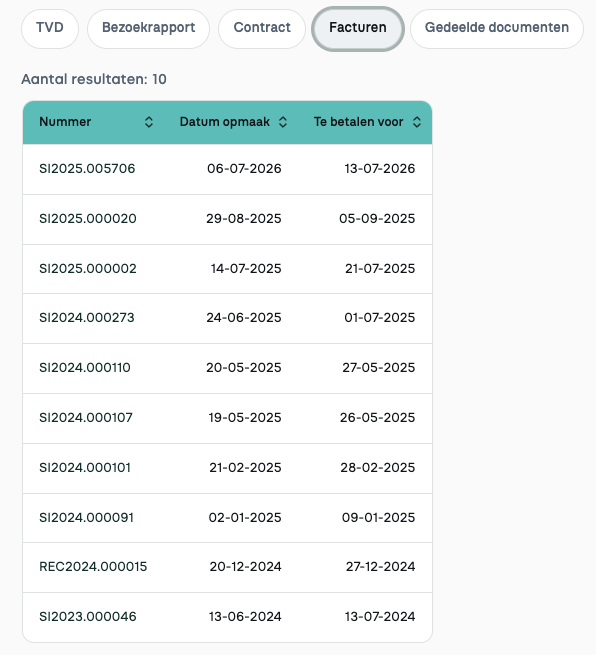
The page has five tabs:
- TVD (in the Netherlands: Logboek en visitebrief): documents from the last 5 years
- Visit report: documents from the last 5 years
- Contract: all contracts, meaning documents created with a contract template
- Invoices: all final invoices. Invoices that are not yet final are not shown.
- Shared documents: files you share yourself (see below)
Documents created before you switched on Fuga Share are also visible right away.
Switching on Fuga Share
- Switch on Fuga Share once for the practice: Settings => Practice preferences => General => tick Fuga Share.
- Open the client's record and tick Fuga Share.
- Fuga creates a personal link for this client. You find it in the client record, under Fuga Share.
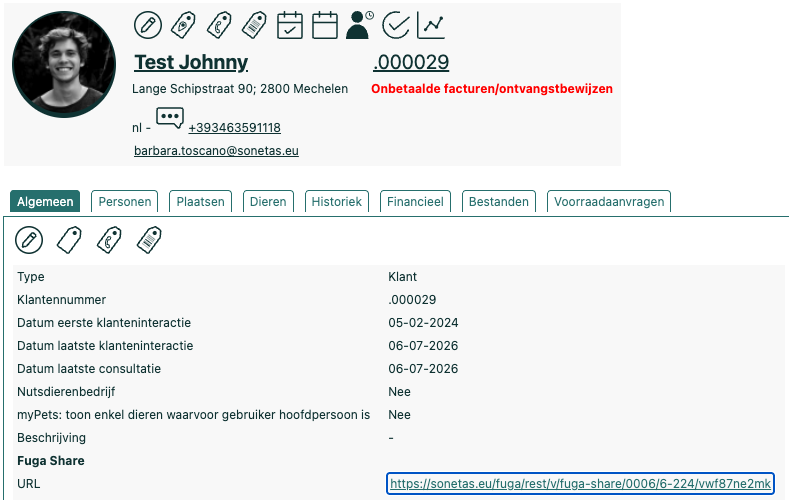
Fuga does not send anything to the client by itself. You send the link yourself (see below).
In the client record you also see how many times the link was opened and when it was last opened. If you open the link yourself, that counts too. This way you see exactly what your client sees.
Sending the link to your client
For one client: copy the link from the client record and send it by e-mail.
For many clients at once, you can create a letter with the personal link and a QR code:
- Go to Consultation => Advanced search (in the Netherlands: Clients => Advanced search).
- Search for all clients with Fuga Share ticked and choose a language.
- Click the letter icon above the table.
- Choose the template Invitation Fuga Share (Dutch), (French) or (English).
- Print the letters and send them.

Ask your client not to forward the link. Anyone who has it sees all documents.
Sharing a file yourself
You can also put other files on Fuga Share, for example a lab result or a report. This works from the client record, the animal record or a consultation:
- Open the list of files.
- Click the icon Share on the Fuga Share portal next to the file.
- The file appears in the Shared documents tab.
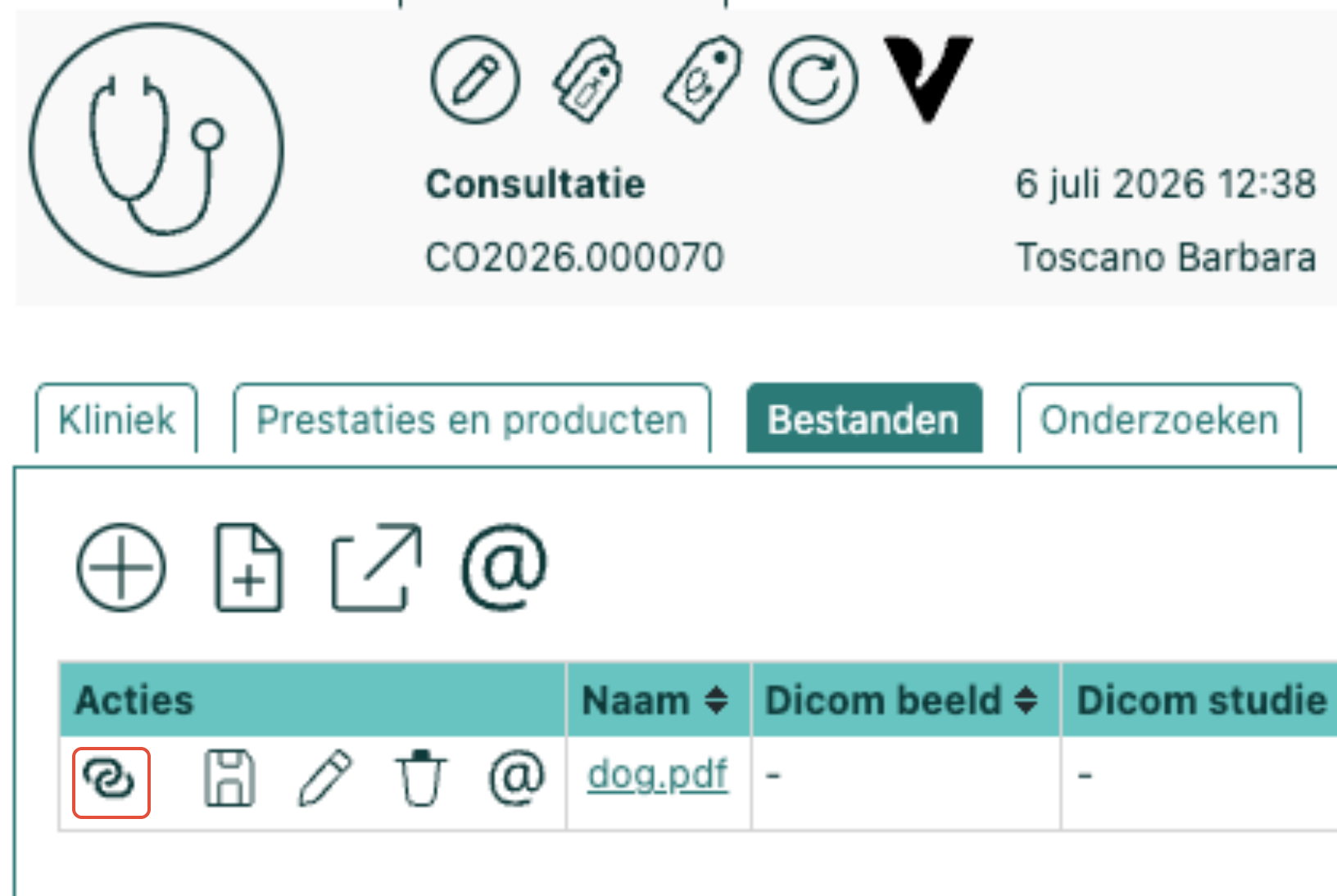
To remove the file again, click Remove from the Fuga Share portal. The file disappears from the page immediately.
You do not see this icon for TVDs, visit reports and contracts: those are already on Fuga Share automatically.
Withdrawing access
- For one client: untick Fuga Share in the client record. The old link stops working. If you tick it again, the client gets a new link. This is useful when the link has ended up in the wrong hands.
- For all clients: untick Fuga Share in Settings => Practice preferences => General. Nobody has access any more.
Formerly myVet
Fuga Share used to be called myVet. Existing links and QR codes keep working.