
What is the task list?
The task list in the agenda lets you add tasks alongside your regular appointments. At the top of each day in the agenda you can see how many tasks you have for that day. There are four possibilities:
- Grey dot with '0': there are no tasks (completed or uncompleted) for that day.
- Green dot with '0': there are no uncompleted tasks for that day, but there are completed tasks.
- Green dot with a number greater than '0': that many uncompleted tasks are linked to the day. Completed tasks are not counted.
- Red dot with a number greater than '0': that many uncompleted tasks are linked to the day, at least one of which has a due date on that day or in the past. Completed tasks are not counted.

The task list is only available in the 'Nova' agenda. You choose the agenda type under Configuration => My preferences => Agenda.
How do I organise my task list?
To add a task, click the dot and then the 'Add' icon ( ).
You enter a day and can also set a time. With a time, the task also appears in the agenda. The task only takes up part of that slot, so you can still book a regular appointment at the same time. By default Fuga reserves 15 minutes for a task, so there is enough room for the description. The due date and time are optional. If you fill them in, overdue tasks are shown in red. You can also link a person to the task, for example the client you want to call.
Next, you enter a description (the name of the task) and choose one or more staff members. Staff members with a vet account as well as with an assistant account can be given tasks. A task with a time appears as a block in the agenda when the staff member has their own column in the agenda. Only a vet account can have its own column, so assistants do not see their tasks as blocks in the agenda.
Above the agenda you do see an overview of the oldest open tasks of the logged-in person. This way assistants can still keep track of their personal tasks. By default this overview shows 15 tasks, with a maximum of 20. You change the number under Configuration => My preferences => Agenda, in the field Number of 'open tasks'.

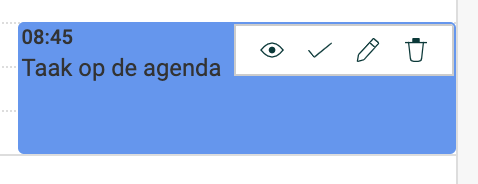
The 'View' icon ( ) shows the details, the 'Edit' icon (
 ) lets you edit the task and the 'Delete' icon (
 ) deletes it. With the checkbox or the 'Completed' icon (
 ) you mark a task as completed. Completed tasks are listed in the overview at the top. You set them back to uncompleted by unticking the checkbox or by clicking the 'Deactivate' icon (
 ). Tasks that have not been marked as completed also remain in the dot of the current day.
You can also change the status of a task: Open, Ongoing, Waiting on third party, Executed or Cancelled. Each status has its own colour. You change the colours under Configuration => Practice preferences => Agenda => Color task status.
How can I add or delete several tasks at once?
With the Add recurring task function you create a recurring task in one go. With the Search task function you look up one or more tasks. From that list you can also delete several tasks at once with the bin icon at the top of the table.