
With the public agenda, your clients can book an appointment online themselves via myPets. You decide which appointment types they can choose, when you are available, and until when they can book or change an appointment.
Setting up online appointments takes three steps:
Further down you can also read how online appointments appear in the Fuga agenda.
Step 1: Create appointment types
Go to Configuration => Practice preferences, tab Agenda. In the 'Type sub-consultation' table, add the appointment types clients can choose online, for example 'Vaccination' or 'Consultation'.
For each type you enter the name in three languages and the duration. Optionally you can also choose a species. This lets you plan more time for a horse than for a cat or dog, for example.
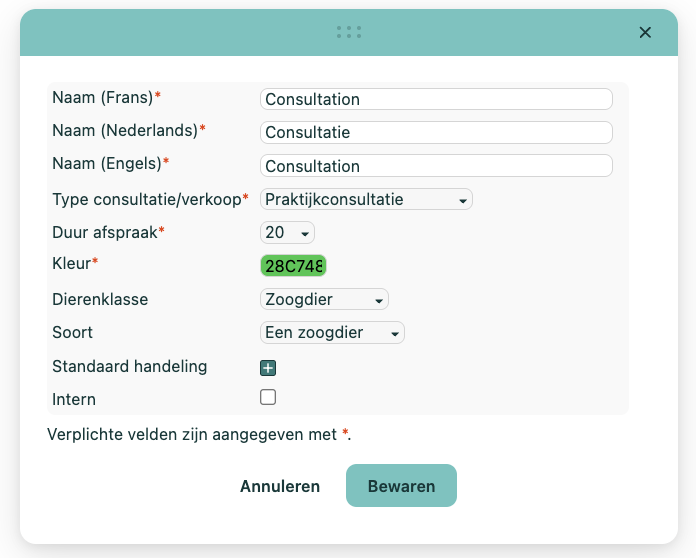
Note: a type with 'Internal' ticked is not visible in myPets, so clients cannot choose it. Only use 'Internal' for types you use in your own Fuga agenda.
You can read more in the article Appointment types.
Step 2: Open appointment blocks
An appointment block is a period in which clients can book online. Open the Public agenda table. You can also get there via the myPets logo ( ) at the top of the agenda.
- 'Add' creates a single block.
- 'Add multiple' creates a recurring block, for example every Monday morning.
In the form you enter when the block takes place, for which co-worker and in which room. You also link one or more appointment types from step 1 to it. A client only sees the blocks that are linked to the type they choose.
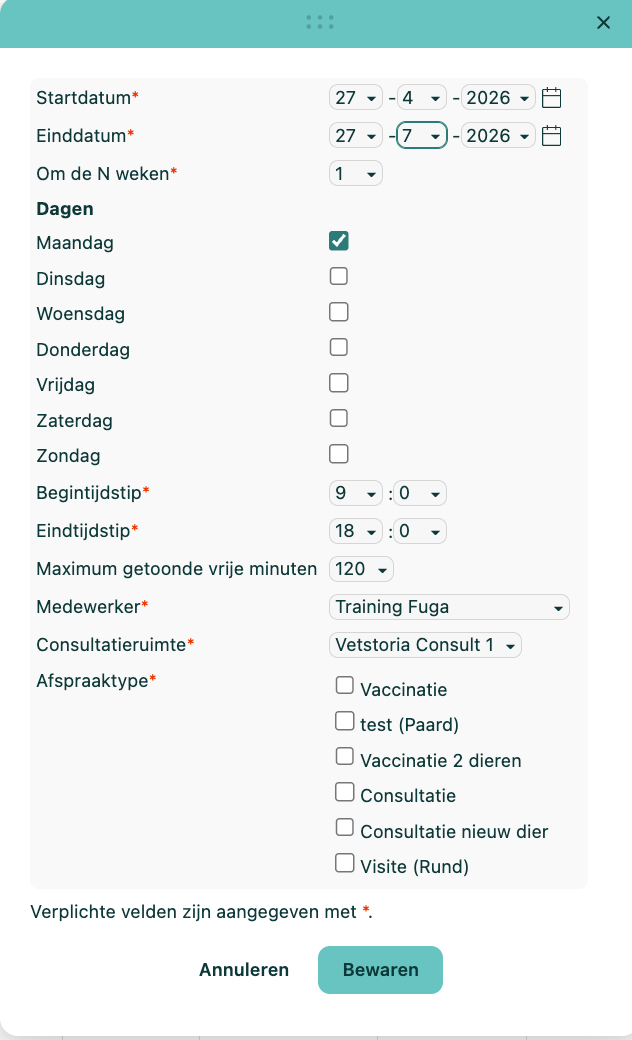
Note: if you create a new appointment type later, it is not added to existing blocks automatically. Link it to those blocks yourself. Otherwise the new type is only available online in new blocks, possibly far in the future.
The field 'Maximum number of free minutes shown' keeps online appointments close together and avoids gaps in the agenda. Example: a block on Monday from 9:00 to 18:00, appointments of 20 minutes and 'Maximum number of free minutes shown' set to 120. In myPets the client first only sees the 6 slots between 9:00 and 11:00. As soon as an appointment is booked, the next slot (11:00 to 11:20) appears, and so on.
Step 3: Choose the general settings
The general settings are in Configuration => Practice preferences, tab Public agenda.
- 'Appointment creatable until N hours before appointment': how many hours in advance a client can book online at the latest.
- 'Appointment editable until N hours before appointment': how many hours in advance a client can change or cancel an appointment at the latest.
- 'Inform practice via email': the practice receives an email for every new online appointment.
- 'Can client choose vet?': the client chooses the vet themselves.
- 'Description': a short message the client sees in myPets when making an appointment. It can be written in several languages. For example: 'Please call us to book an appointment for surgery.'
- 'Slots are calculated from end time of existing appointments': see below.
- 'Appointments shown (filter on status)' and 'Appointments shown (filter on type)': see below.
Slots are calculated from end time of existing appointments
With this option, an online slot starts right after an existing appointment in the block, so no gaps appear. Example: a block from 9:00 to 12:00 with appointments of 30 minutes, and you schedule an appointment yourself from 9:00 to 9:20.
- Option ticked: the first online slot is 9:20 to 9:50.
- Option unticked: the first online slot is 9:30 to 10:00. The time between 9:20 and 9:30 stays unused.
Appointments shown
These two filters decide which appointments a client sees in myPets among their own appointments. They do not decide which types the client can book.
An appointment is only shown if both its status and its type are ticked. Example: an appointment with status 'Appointment online' and type 'Surgery' is only visible if you tick that value in both filters. If you later change the status to one that is not ticked, the appointment disappears from myPets. Past appointments stay visible for one year at most.
Online appointments in the Fuga agenda
- The periods you opened for online appointments have a separate colour in the Fuga agenda. This shows you at a glance where online bookings are still possible.
- If a block is linked to appointment types of different lengths, the agenda shows the slots of the shortest type.
- Clients can book online up to 26 weeks (about 6 months) ahead. You cannot change this period yourself. If you want a shorter period, only open appointment blocks up to the date you want.
- With the action Search appointment block you can look up several blocks at once to view, change or delete them.