
What are templates?
Templates are reusable documents that Fuga automatically fills in with data from the client, animal, or consultation. You create a template once and then apply it whenever you need it.
Fuga provides both standard templates (supplied by Sonetas, not directly editable) and the ability to create your own practice templates.
Template types
| Type | Usage |
|---|---|
| Letter | Printable or digital documents: reports, contracts, reminders, referral letters. Also used as a template for email reminders — you do not need to create a separate Email template for that. |
| Text field | Plain text field without formatting, used for fixed text blocks (e.g. anamnesis templates, notes) |
| Message body for email communication to clients | |
| SMS | Messages for SMS communication |
| Drawing | Clinical drawings: dentistry, dermatology, ophthalmology, neurology |
Creating your own template
- Go to Configuration.
- Click Add template under Actions.
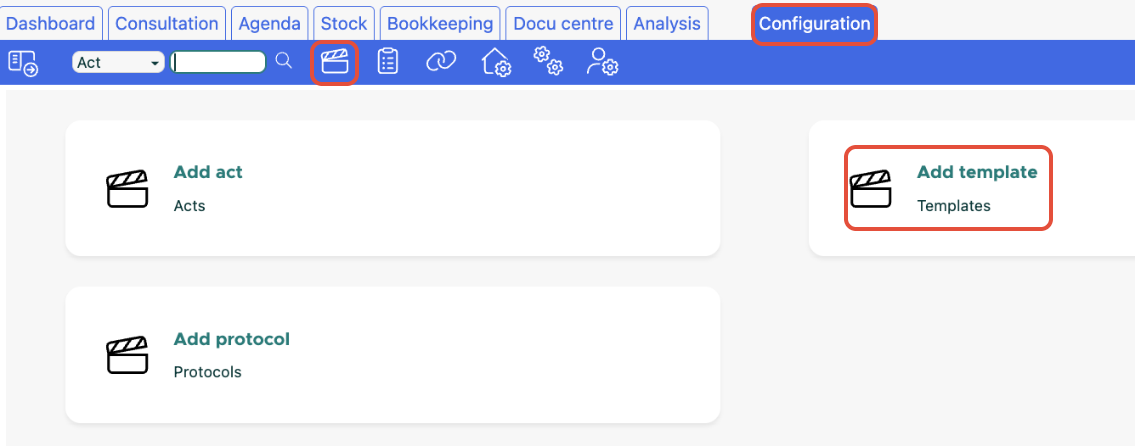
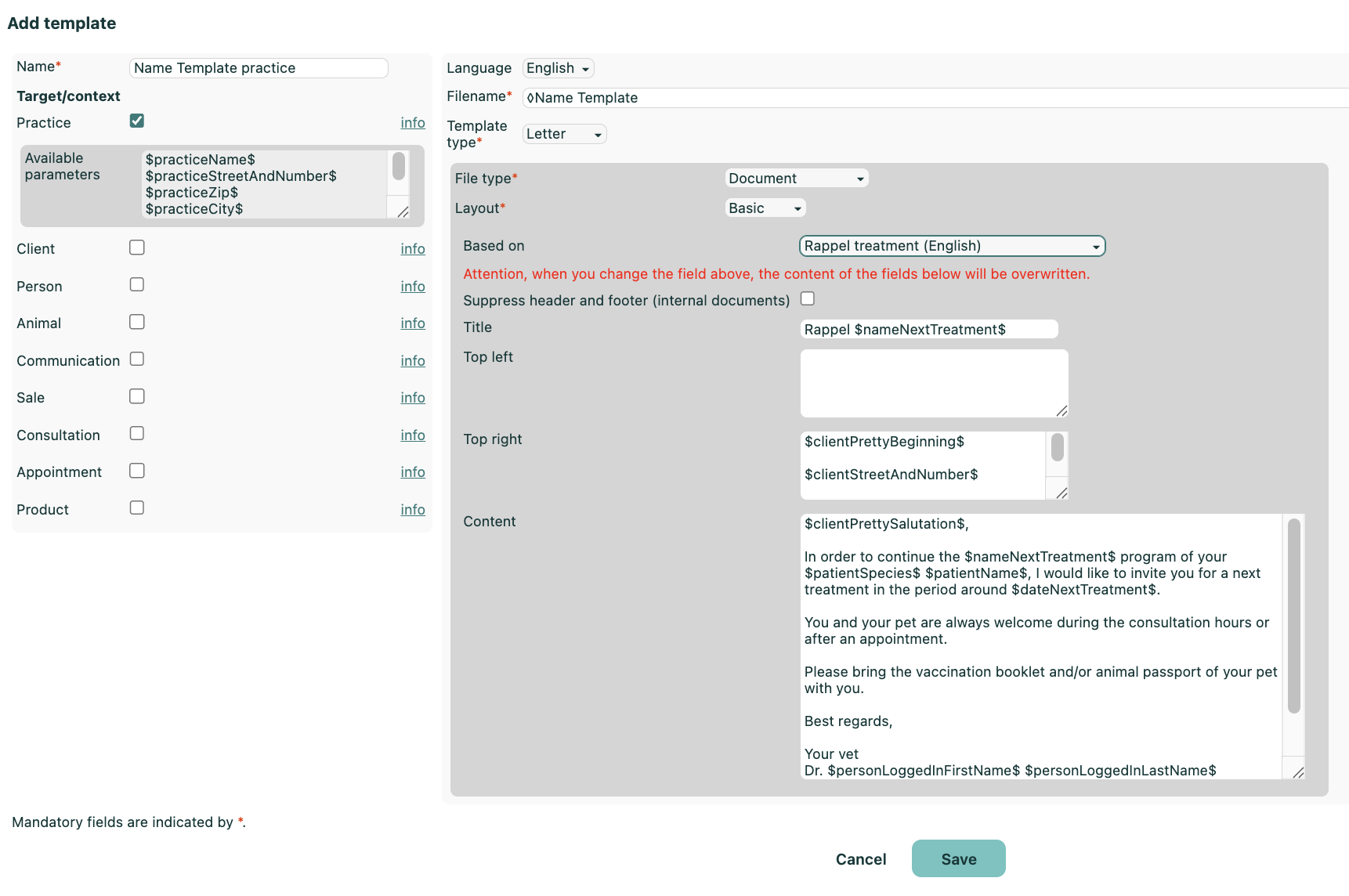
- Give the template a name (unique within your practice).
- Choose the language (Dutch, French, English, or leave empty for all languages). The language determines which clients the template is available for.
- Choose the type (see table above).
- Choose the destination — this determines which variables are available and where the template can be used in Fuga (see below).
- Choose the format(only for type Letter):
- Simple — three text fields (top left, top right, content)
- Rich text — HTML editor with formatting, tables, and images
- Optionally fill in Based on to use an existing template as a starting point. Note: the destination is not carried over — set it yourself.
- Fill in the file name template, for example:
Report_$clientFirstName$_$clientLastName$. - Write the content of your template and insert variables (see below).
- Click Save.
Destinations (context)
The destination determines which variables you can use and what the template is available for:
| Destination | Available variables |
|---|---|
| Practice | Practice data |
| Client | Client data + practice data |
| Animal | Animal, client, and practice data |
| Consultation | Consultation, animal, client, and practice data |
| Appointment | Agenda, animal, client, and practice data |
| Sale | Products, dosages |
| Communication | Conversation reports |
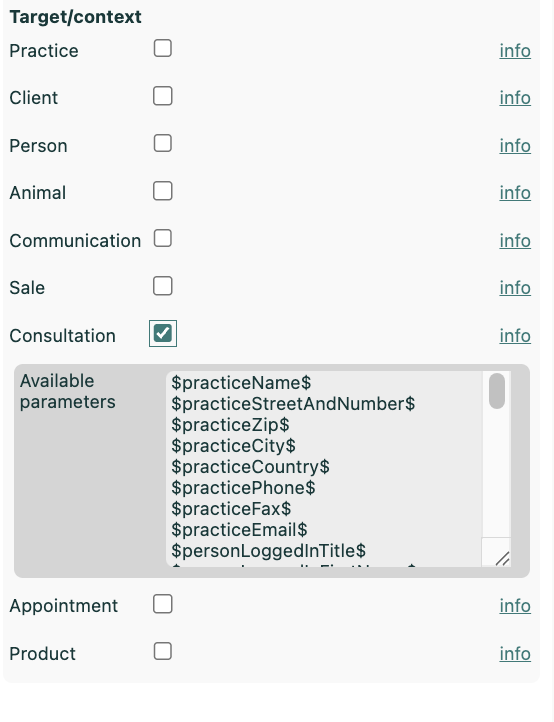
Important — pitfall with multiple destinations: if you check multiple destinations, Fuga validates every variable in your template against each selected destination. If you use a variable that is not available in one of the destinations, Fuga blocks saving with an orange error message, e.g. $clientStreetAndNumber$ (Unknown Person).
Practical tip: only check the destinations you actually need:
- Letter about an animal to a client (with client and animal variables) → only check Animal. This automatically gives access to practice, client, and animal data at the same time.
- Consultation report → only check Consultation. This also gives access to animal, client, and practice data.
- Appointment confirmation → only check Appointment.
Variables
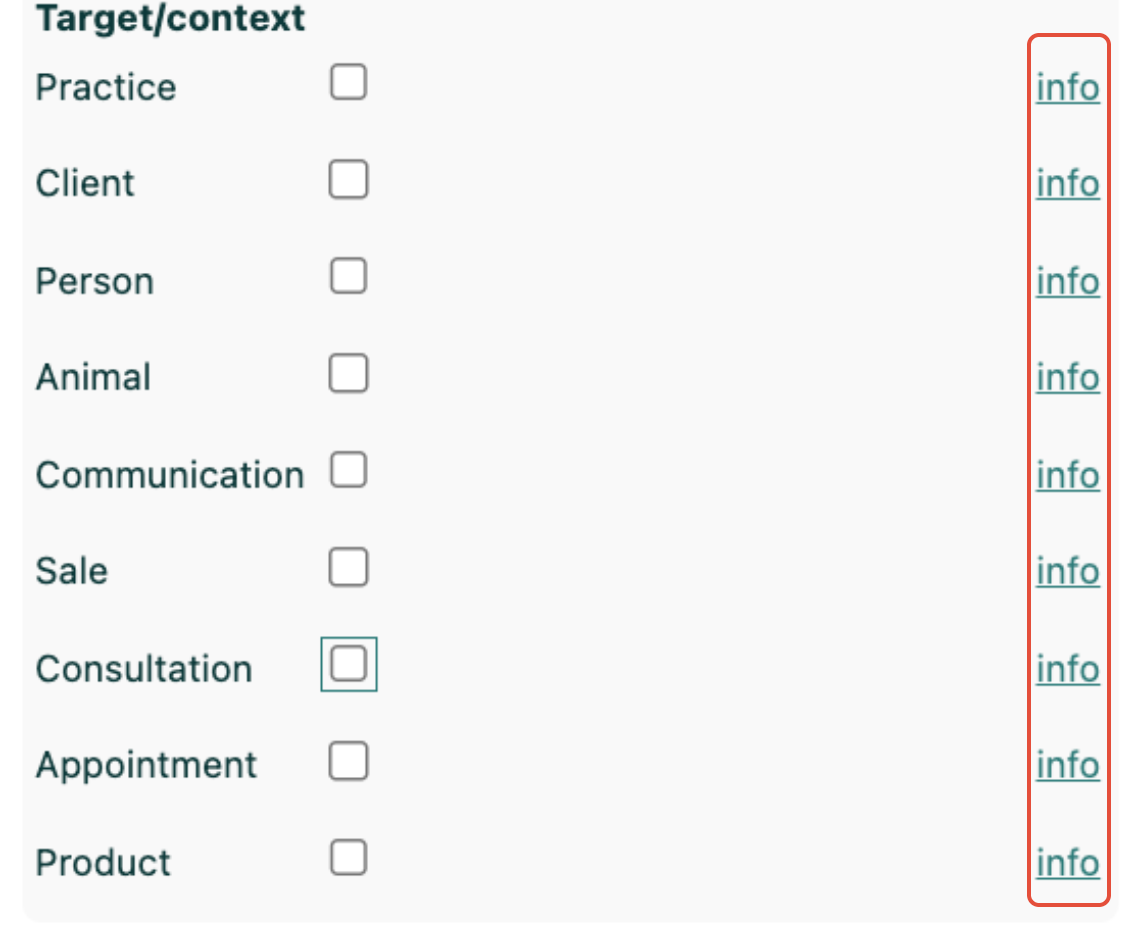
Write variables between dollar signs: $variablename$. Fuga replaces them automatically when creating the document. Use the Info button in the template to see all available variables per destination.
Commonly used variables
Practice
| Variable | Result |
|---|---|
$practiceName$ | Practice name |
$practicePhone$ | Phone number |
$practiceEmail$ | Email address |
$practiceStreetAndNumber$ | Street and number |
$practiceZip$ | Postal code |
$practiceCity$ | City |
Client
| Variable | Result |
|---|---|
$clientFirstName$ | Client first name |
$clientLastName$ | Client last name |
$clientName$ | Client full name |
$clientEmail$ | Client email address |
$clientPhone$ | Client phone number |
$clientAddress$ | Full address |
Animal
| Variable | Result |
|---|---|
$patientName$ | Animal name |
$patientSpecies$ | Species |
$patientBreed$ | Breed |
$patientDateOfBirth$ | Date of birth |
$patientTransponder$ | Chip number |
$patientAge$ | Age |
$lastWeight$ | Last weight |
Consultation
| Variable | Result |
|---|---|
$anamnesis$ | Anamnesis |
$clinicalExamination$ | Clinical examination |
$clinicalExaminationDetail$ | Detailed clinical examination |
$diagnosis$ | Diagnosis |
$diffDiagnosis$ | Differential diagnosis |
$therapy$ | Therapy |
$posologyApplied$ | Applied posology / medication |
$followup$ | Follow-up |
$prognosis$ | Prognosis |
$referringVetFirstName$ | Referring vet first name |
$referringVetLastName$ | Referring vet last name |
$referringVetPhone$ | Referring vet phone |
$referringVetEmail$ | Referring vet email |
Logged-in user
| Variable | Result |
|---|---|
$personLoggedInTitle$ | Title (Dr., etc.) |
$personLoggedInFirstName$ | First name |
$personLoggedInLastName$ | Last name |
Date
| Variable | Result |
|---|---|
$dateToday$ | Today's date |
$dateTodayPlus7$ | Date in 7 days |
$dateTodayPlus30$ | Date in 30 days |
You can use any value from 1 to 360, e.g. $dateTodayPlus90$ for a check-up in 3 months.
Image placeholders
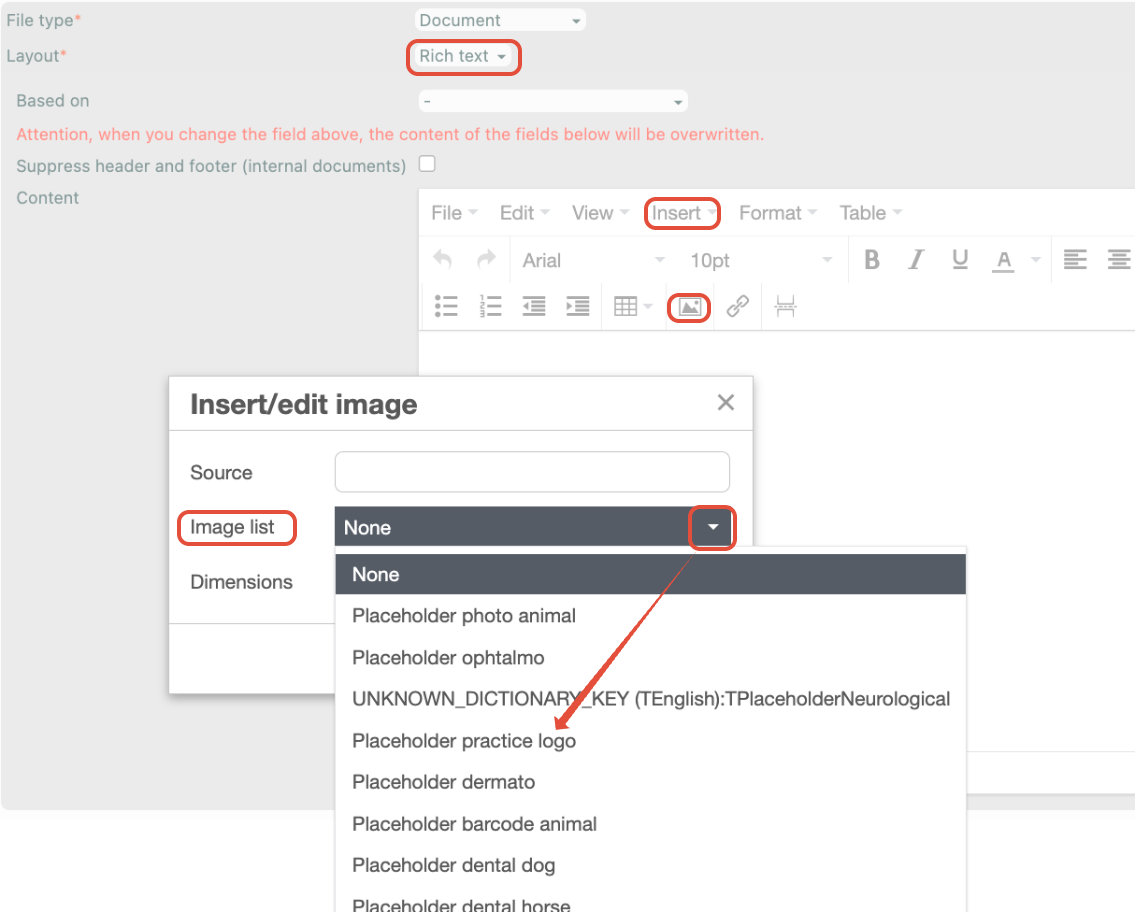
In a Letter with Rich text format, you can also automatically insert images via the menu in the editor:
- Practice logo
- Signature of the logged-in veterinarian
- Animal photo
- Client barcode / animal barcode
- Animal weight curve
- Clinical drawing (dentistry, dermatology, ophthalmology, neurology)
Using a template
Once created, you can use your template in various places in Fuga:
- From the animal record => Documents tab => New document
- From a consultation (for consultation reports and referral letters)
- From an appointment (for appointment follow-up letters)
- From the client record (for general client communication)
- From the Docu center — convenient if you want to create a document without first opening an animal or client record. Go to Docu center and choose the desired template.

Text field templates in consultations
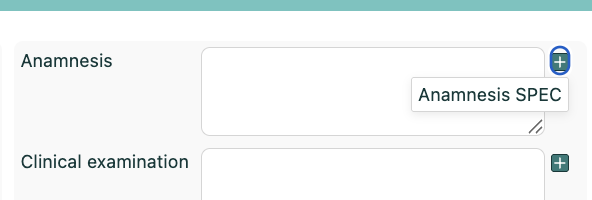
Text field templates with destination Consultation appear as an insert option next to the consultation fields (Anamnesis, Clinical examination, Diagnosis, Therapy, etc.). They do not fill in automatically when you open a consultation — you choose when to apply them.
How it works:
- Open a consultation.
- Click the + next to the desired text field (e.g. Anamnesis).
- Select the template from the list.
- The predefined text is inserted into the field. You can further complete or modify it.
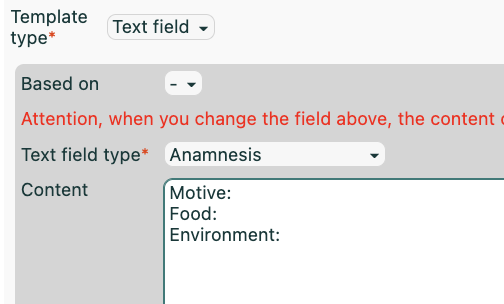
Example: a practice wants to use the same structure for every anamnesis — "Reason: … ; Diet: … ; Environment: …". Create a Text field template with destination Consultation and subtype Anamnesis, and everyone in the practice can insert it with a single click.
Creating documents in batch
You can generate documents from a Letter template for multiple clients at once. This is convenient for e.g. an annual vaccination reminder or a mailing.
Go to Communication => Generate documents, select the template and the target group, and Fuga creates a personalised document for each client with the correct variables filled in.
Finding and managing templates
Over time you will build up a list of your own templates. Here is how to find and manage them:
Searching
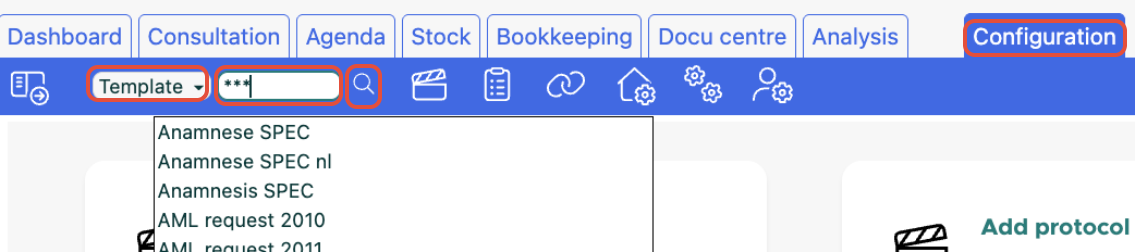
Go to Configuration => Templates. In the search bar at the top you can filter by name. Type *** (an asterisk) to see all templates at once. Use the dropdown menu next to the search bar to filter by type (Letter, Text field, Email, etc.).
Click the Show icon (eye) next to a template to open the full template details.
Deactivating vs. deleting
There are two ways to remove a template from daily use:
- Deactivate (cross icon) — the template disappears from selection lists but is preserved. You can reactivate it later. This is the recommended approach if you temporarily no longer need a template.
- Delete (trash icon) — the template is permanently removed. Only use this for templates you are certain you no longer need. Documents previously created with this template are preserved.
Customizing standard Fuga templates
Standard Fuga templates are read-only — you cannot edit them directly. The easiest way to create your own version is by cloning:
- Open the standard template in Configuration => Templates.
- Click Clone (or the copy icon).
- Adjust the name and content as desired.
- Save.
- Go to Configuration => Practice preferences and set the new template as the one to use — otherwise Fuga keeps using the standard template.
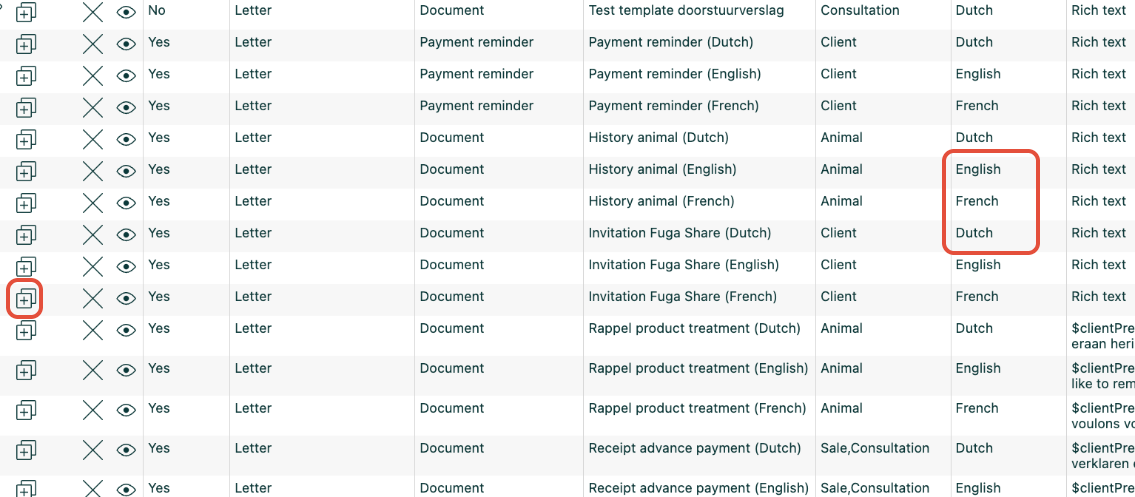
Advantage of cloning vs. "Based on": when cloning, the type and destination are automatically carried over. With "Based on", you need to set them yourself again.
Example: want your own payment reminder? Clone the standard reminder template — type and destination are then immediately correct. Don't forget to switch to your new template in Practice preferences afterwards.
The cloned template does not automatically replace the standard template — both remain available. You can deactivate the standard template if you no longer want to see it as an option.