
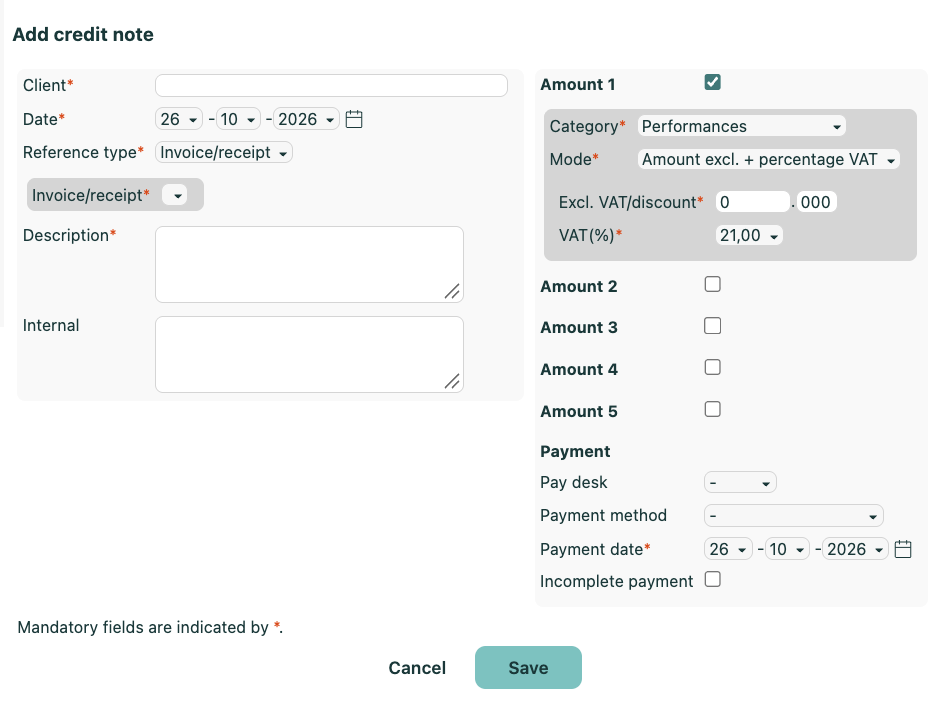
You can create a credit note via the Add credit note function under the Accounting tab. Or you can add a credit note directly in the client record under 'Financial'. A new screen appears, where you fill in the various details relating to the credit note.
With a credit note you can fully or partly credit an invoice that has already been locked or settled.
To look up one or more credit notes, you need to be in the Accounting tab. In the bar below the main menu you will see a dropdown menu and a search field, where you first select 'Credit note' and then enter the exact search term(s) or part of the search term(s). You can also use the asterisk (*) in the search term: this gives you a list of all credit notes.

This table only shows shortcuts for each client - from here you can, for example, directly edit the credit note, mark it as paid, download it or e-mail it. And to open a credit note, you click the 'Show' icon ( ). To get a list of all credit notes, you can also call up the Credit notes report under the Accounting tab.
With the Delete credit note action you can delete a credit note.
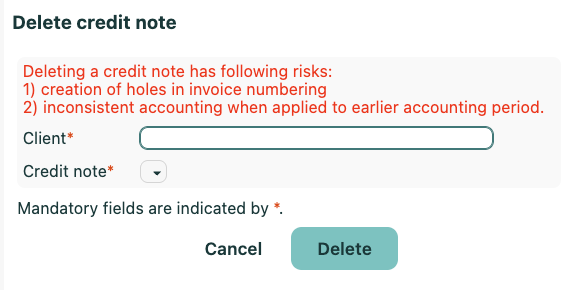
Filling a gap in the numbering after deletion
Invoices and credit notes share the same numbering. When you delete a credit note, the associated number disappears permanently — Fuga does not reuse it automatically. You can fill the gap yourself using the steps below.
- Go to Settings => Practice preferences => Numbers tab.
- Set "Sales invoice number type" to "Manual" and save.
- Create a new invoice via the normal procedure. Fuga now asks you to enter the number yourself — fill in the missing number. Note: the settlement date must fall within your practice's permitted booking period.
- Go back to Settings => Practice preferences => Numbers tab, set "Sales invoice number type" back to the automatic setting (e.g. "Prefix, year and sequence number") and save.
Do not forget to switch back to automatic after you have filled the gap. If "Manual" remains active, you will have to enter a number yourself for every new invoice.
Afterwards you can check whether the numbering is complete via the report Accounting => Reports => Gaps in invoice/receipt numbering.
Unpaid credit notes
In the Accounting tab you can call up an Unpaid credit notes report. Per row you can download or e-mail the credit note.
Reconciling an invoice (partly) against a credit note
When you have created a credit note from an invoice, you can mark the invoice as paid with payment method 'Credit note'.
You must also reconcile the credit note with payment method 'Invoice'.
Three situations can occur:
- credit note amount smaller than invoice amount: register a payment of type 'credit note' on the invoice for the credit note amount. The outstanding balance of the invoice can then be settled with another payment method. You must reconcile the credit note fully under payment method invoice.
- credit note amount identical to invoice amount: you settle the entire invoice with payment method credit note, and you settle the credit note fully with payment method invoice
- credit note amount is greater than invoice amount: two situations can arise:
- you keep an outstanding part of the credit note
- you want to settle the existing credit note straight away by refunding the remaining balance (regardless of the payment method): This article shows you the correct steps:
https://sonetas.freshdesk.com/a/solutions/articles/42000116875?lang=nl
Please note:
When you create a credit note via the procedures above, ONLY financial movements are recorded.
When you want to create a credit note because of a product return, you must follow the procedure in this article:
What do I do when a client returns a product?