
A client's e-mail address is also their login for myPets. That's why it can't simply be changed or deleted: if you remove the address and save, Fuga automatically restores it and shows the message "myPets e-mail address cannot be deleted".
To change or delete the address, you first have to detach the myPets account from the e-mail address.
Changing or deleting the e-mail address
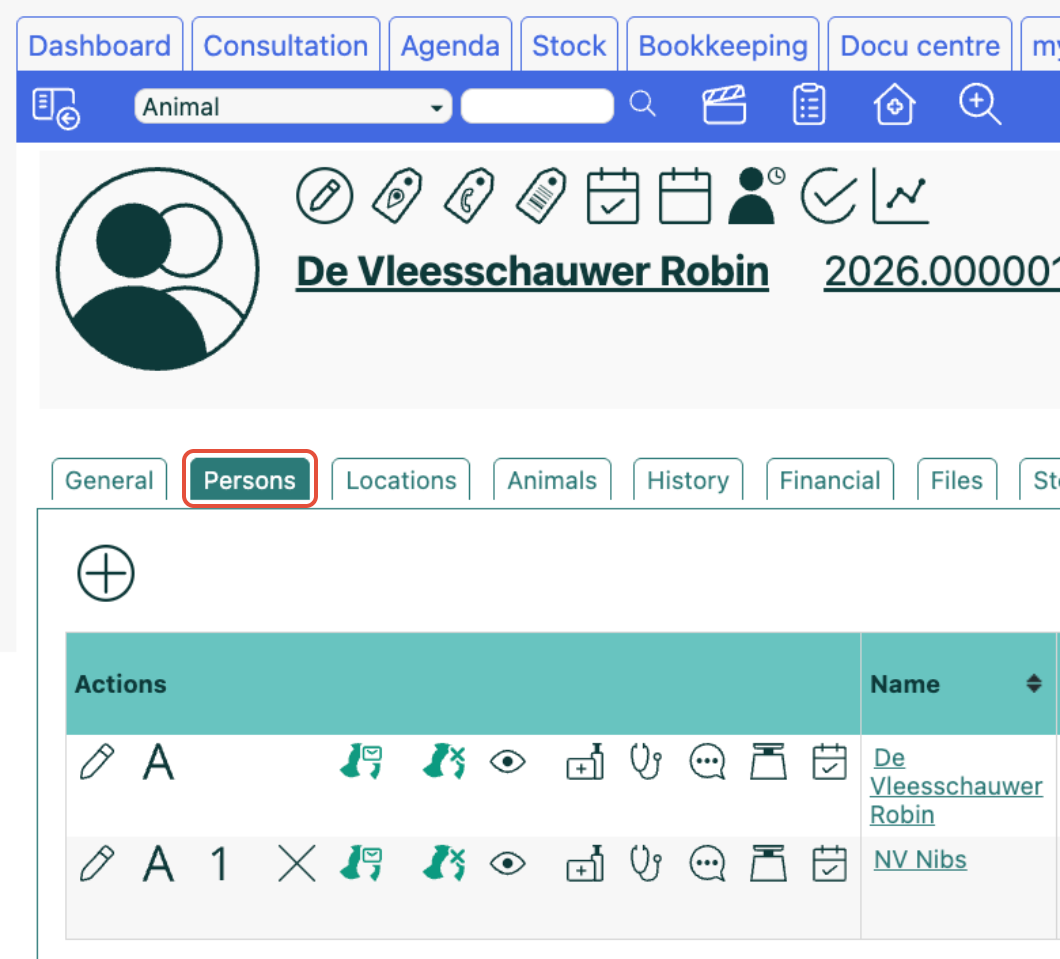
1. Open the client record and go to the Persons tab.
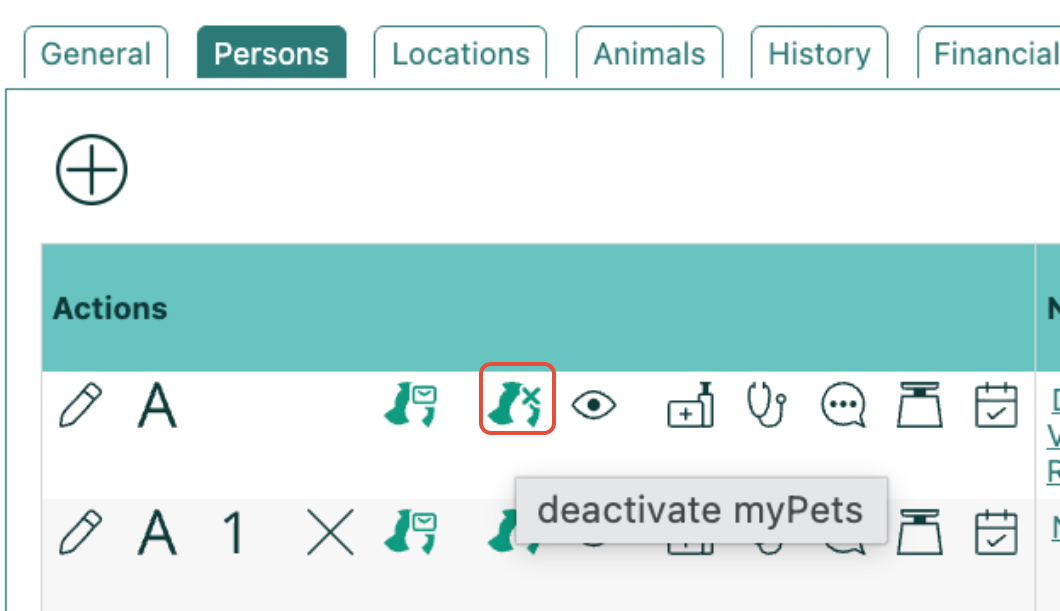
2. In the Actions column, on the row of the relevant person, click the "deactivate myPets" icon. Confirm the question "Are you sure you want to deactivate myPets?". This detaches the myPets account from the e-mail address.
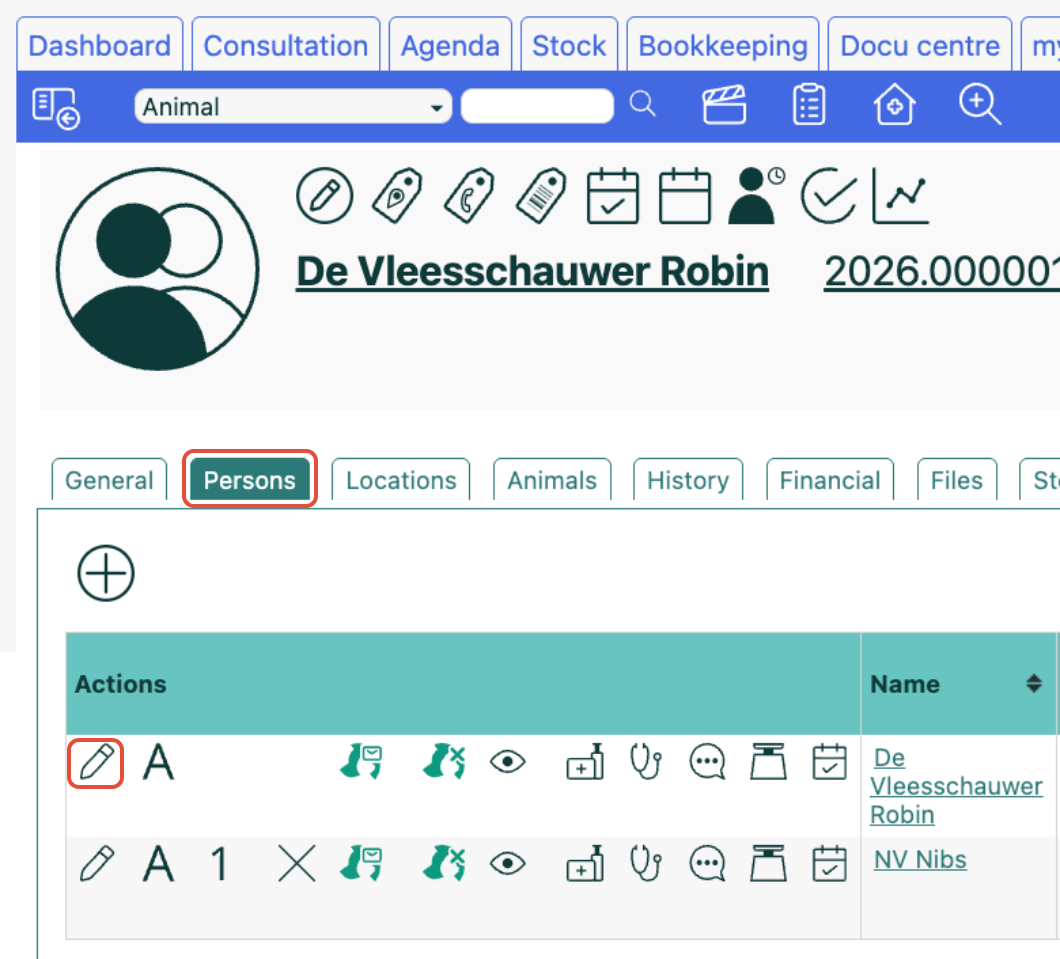
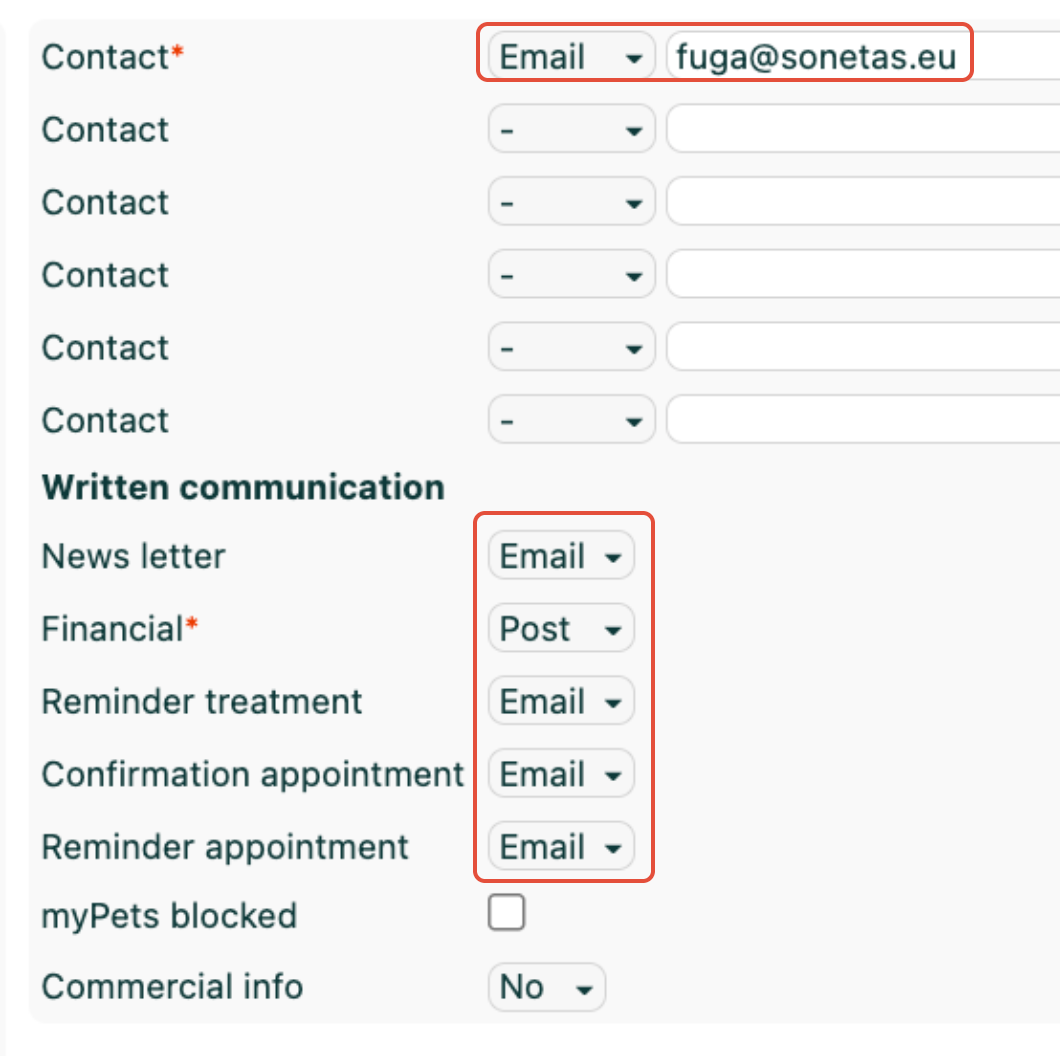
3. Edit the person, change or remove the e-mail address, and save. The address now stays changed or removed.
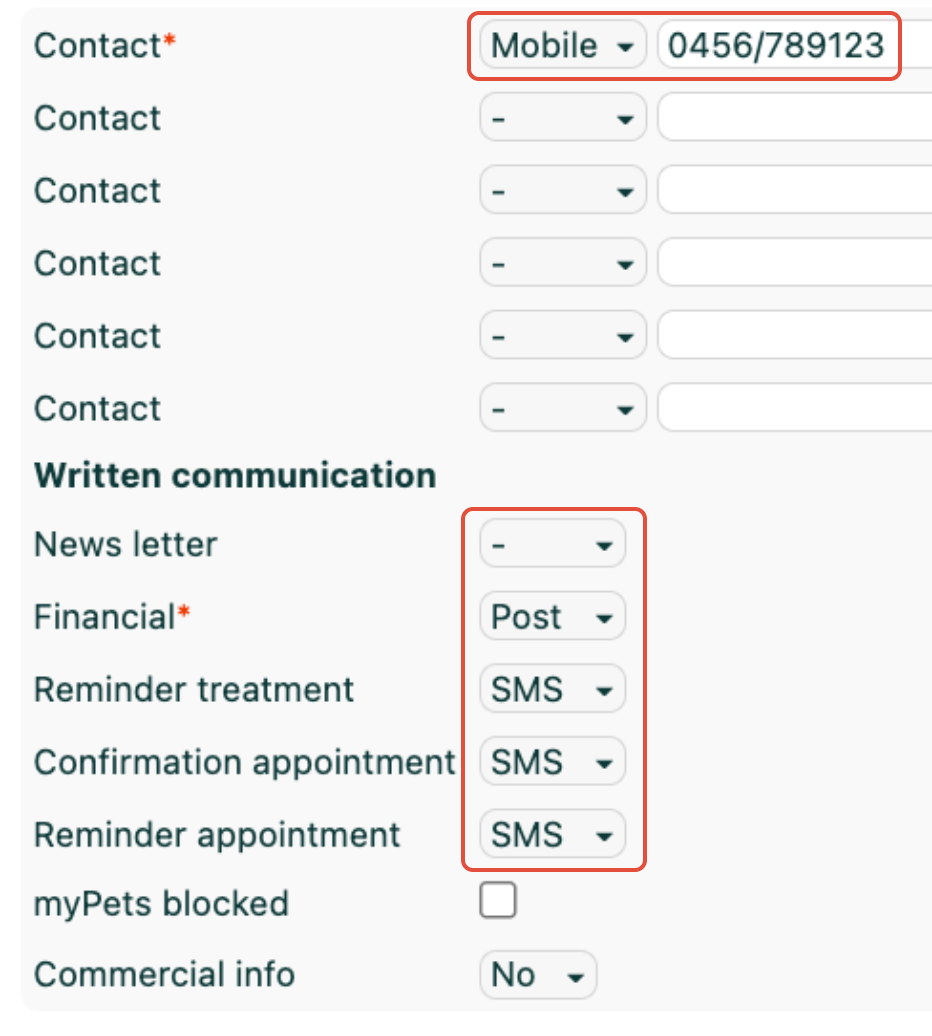

4. Does the client still want to use myPets? Re-invite them with the correct address via the "myPets invitation" icon in the same Actions column.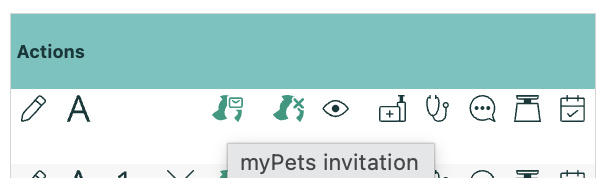
Important — don't confuse this with "myPets blocked"
Don't use the "myPets blocked" checkbox in the person's record for this. That checkbox does not detach the e-mail address: the address will keep coming back and still can't be deleted. On top of that, the "deactivate myPets" icon disappears from the Actions column as soon as "myPets blocked" is ticked.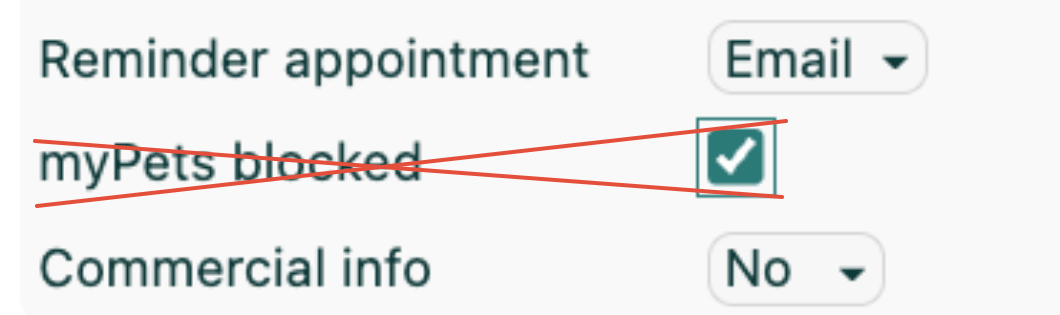
Is the checkbox already ticked and the icon gone? Edit the person, untick "myPets blocked" and save. The "deactivate myPets" icon reappears, and you can continue from step 2.
Note: deactivating myPets removes that person's myPets access (including the invitation). If the client actively uses myPets, let them know or re-invite them afterwards with the new address.