
Under Practice data you can enter some standard details for the practice. Only veterinarian accounts with administrator rights can change these settings - other accounts can view them.
General
Here you enter the general details and information about your practice. These details will appear on documents you generate in Fuga, such as invoices.
- Company name - Here you enter the company name of the practice. It will therefore appear on all documents.
Changes or alterations to the legal form, for example to a BV (private limited company), can be entered here. - RPR (Register of Legal Entities) - The register of legal entities must be stated. Here you enter the city in which the seat of the court of the jurisdiction in which the company is located is established.
- Company number - Here you enter the company number (VAT number) of the practice.
- Public phone number - Here you enter the phone number of the practice.
- Public fax number - Here you enter the fax number of the practice.
- Public email address - Here you enter the email address of the practice for sending emails from the system.
- Special email addresses - Here you optionally enter different 'reply-to' email addresses for newsletters, treatment reminders and financial documents (invoices, credit notes and payment reminders).
- Public email address label - By filling in this field, the recipients of your emails will also see the content of this field instead of just your email address. We recommend filling in the name of your practice here.
- Order number (legal entity) - You use this field if your practice has an order number as a veterinarian legal entity (not as a veterinarian natural person). This allows you to enter the practice (veterinarian legal entity) as the company veterinarian on the certificates. The herd health management and company veterinarian contracts for cattle/pigs can then be linked to the practice instead of to a veterinarian natural person.
- Signatory (legal entity) - If the practice uses 'Practice as legal entity' when drawing up contracts (for example a company veterinarian contract for cattle), you can use this option to additionally indicate whose (saved) signature must be used.
Stock
In this tab you can add the outgoing product units that are available in your stock, in three languages if the multilingual option is activated under Settings => Practice preferences => Documents => Language-specific names for products, acts, protocols, etc. It is not necessary to add them all in advance, since you can also add them while adding products.
In the Metric unit column you can link each product unit to a number and a metric unit (g or ml), for example "kg" = 1000 g or "0.1ml" = 0.1 ml. If you fill in one of the two fields, you must also fill in the other, with a number greater than 0. For the standard units ml, cc, kg and 0.1ml this was already filled in automatically.
Fuga uses this metric unit for the antibiotic declaration to VAMREG in Belgium. A product with a CNK code is declared in ml or g when the product's outgoing unit has a metric unit and VAMREG expects the same unit for that product. In all other cases, Fuga declares in packs. You can read more in FAMHP VAMREG — Antibiotic Declaration in Belgium.
Accounting
In this tab you can fill in the details relating to your accounting.
- VAT system - Here you select the country in which your practice is located.
- Practice exempt from VAT - Some practices can be exempt from VAT, for example if you have a limited turnover. If you have ticked this feature, Fuga will take the setting into account and VAT will never be charged.
- Foreign product purchases - This determines whether or not Fuga adopts the foreign VAT percentages when you purchase products abroad.
- Currency - Here you select the currency you want to work with in the practice.
- Start of financial year - Here you select the month on which your financial year begins.
- Payment term - Here you enter the payment term of your invoices, which will appear on the invoice. This is needed to be able to generate reminders at the right moment from the system.
- Payment term editable - With this option you can still change the final payment date when creating an invoice or receipt.
- Payment method required - If this box is ticked, the payment method becomes a required field.
- Cash register required - If this box is ticked, the cash register becomes a required field when settling up.
- Restriction payment date - This option makes it possible to prevent payments from still being added in a previous period
(month or quarter). - Restriction invoice/receipt date - This option makes it possible to prevent invoices or receipts from still being added in a previous period (month or quarter).
- Allow editing of advance payments on open accounts - If this feature is ticked, it is possible to adjust or add the advance payments for consultations/sales that are on the current account. Once this is done, the amount of the advance payment in the report Open current accounts will be clickable and you can make changes to the various advance payments.
- Round to 5 cents (cash) - Here you can read all about rounding in Fuga.
- Round to 5 cents (other payment methods) - Here you can read all about rounding in Fuga.
- Third-party payer - This lets you activate the option to indicate, during a consultation or a sale, that the invoice (or the receipt) is for another client. If this is activated, you can set a default third-party payer for that client in the client file. When creating a consultation or sale you can also indicate a third-party payer. If a default third-party payer is already filled in for that client, it will be adopted as the initial value. A third-party payer must also be known as a client in Fuga. So if you want an invoice to be paid by a referring veterinarian, you must also enter that veterinarian as a client.
- One-Stop-Shop VAT - Since 1 July 2021, a VAT regulation is in force which states that for an online sale to an EU private individual from another country, the VAT rates of that other country must be applied. This regulation is also known as the One-Stop-Shop VAT rule (OSS). Via this option you can activate such sales.
If the option is ticked, you will have the possibility to tick 'One-Stop-Shop VAT (default)' in the client file for EU private clients from another country. When creating a new sale or consultation for this type of client, you can then indicate whether the OSS VAT rule is applied. Initially, whatever was entered as the default value in the client file will be indicated here. You can then complete, lock and settle the sale or consultation as usual. The invoice will state that the OSS VAT rule was applied. Please note: you cannot create invoices that are a mix of 'normal' sales and OSS sales.
On the VAT return, these types of sales are placed in box 47.
If you have to create a credit note for this type of sale, you can do so by first ticking 'One-Stop-Shop VAT' in the credit note form. You then save it and edit the credit note again.
The report One-Stop-Shop VAT register lists all invoices to which the OSS VAT rule was applied. In the report Invoices and the report Credit notes you also have the possibility to tick 'Only One-Stop-Shop VAT'. This then gives an overview of the invoices or credit notes that were created under the OSS VAT scheme. - Bank details (bank, account number, BIC and IBAN) - Here you enter some details of your bank, such as the name, your account number and your BIC and IBAN codes.
- Remuneration system - Read here all information about the remuneration system.
- VAT number check - With this, Fuga checks VAT numbers automatically. For this check we use a service from the European Commission. However, this service sometimes gives 'false negatives': a VAT number may be correct, but the service says it is not. That is why we allow you to disable that check at the moment you enter the VAT number.
- Format VAT number - This option does not check the VAT number, but ensures that the VAT number is saved in a standard format (in Belgium: BE0123.456.789). This formatting also happens if you have enabled 'VAT number check'.
- Payconiq - Read here all information about Payconiq.
- Export - Fuga offers the possibility to export accounting data to an accounting package (of your accountant). See here for more information.
- Payment reminder - Here you can select the payment reminder. If you want to replace Fuga's existing template with your own version, you can do so here. You can enter the payment reminder in three languages, so that the client can receive and read it in their preferred language. You can also enter a default value for the administrative costs here.
- Terms of sale - Here you can set out the terms of sale. These will appear on the invoices and receipts. You can enter these terms of sale in three languages, so that the client can receive and read them in their preferred language. As terms of sale nowadays have to be more extensive and clearer, among other things to avoid collection problems in the event of non-payment, it is now also possible to add a PDF file with the terms of sale. This PDF is then always added as the last page of the invoice. This allows you to work with different fonts, colours, sizes and hyperlinks in the terms
- Quotation terms - Here you can set out the quotation terms, which will appear on the quotation. You can enter these quotation terms in three languages, so that the client can receive and read them in their preferred language.
- Client card - Here you configure the client card. On this page you will find all information about the client card.
- Discount for timely payment - Here you can enter how much discount you give if the client pays on time. If you set an invoice to 'Paid' and the payment date is not after the due date of the invoice, Fuga will automatically create a 'Sale with negative free entry' for this client. In that case the amount is the percentage on the paid invoice. That sale is immediately placed on the current account, so that the discount is settled when the next monthly invoice is drawn up. In the client file you can disable or enable the discount for a specific client. In addition, in Settings => My preferences => Default values => Discount for timely payment you can indicate whether this option is ticked by default for new clients.
- Payment methods (incoming) - It is possible to indicate which payment methods should be visible in Fuga for incoming payments.
- Cash registers - Here you can optionally enter the different cash registers you use in your practice. The number of cash registers is limited by the number of active accounts the practice has.
- Cash book - Here you can decide whether an automatic calculation of the starting amount should be made. You can also enter a bank and account number(s).
- Products
- Default pricing - Here you can indicate a default pricing method.
- Profit margins (%) - These are the percentage profit margins that are available for products you use and/or sell.
- Default profit margin (%) - This is the default profit margin that applies to products, which is also adjustable per individual product.
- Price deviations sale (%) - These are the percentage price deviations that are available on products for sale.
- Default price deviation sale (%) - Here you can set the default deviation that applies to the products, which is also adjustable per individual product.
- Price deviations administered (%) - These are the percentage price deviations that are available on products for administration.
- Default price deviations administration (%) - Here you can set the default deviation that applies to the products, which is also adjustable per individual product.
- Acts (relative price) - You can use this to enter surcharges for evening/weekend/etc.
- Clients
- Reductions (%) - These are the percentage reductions that are possible on the invoice for sales and services.
- Default reduction sale (%) - The default value can be set for sales, which is also adjustable at the moment of application.
- Default reduction services (%) - The default value can be set for services, which is also adjustable at the moment of application.
Staff members and accounts
Staff members
Via the 'Add' icon ( ) you can add all the staff members of your practice to your Fuga. You then link the staff member to an account. Read here how to add a new staff member in Fuga.
If you have a staff member who should not be shown in the calendar and so on, you can tick the option 'Not visible in calendar, consultation, etc.'. This is useful, for example, for managers or for audit accounts.
Accounts
Here are the accounts that are available for your Fuga. Always link an account to a staff member first before you can use the account.
| Accounting | Analysis | View settings | Change settings | Own calendar | Create consultations in own name | |
| Assistant | No | No | Yes | No | No | No |
| Veterinarian (non-administrator) | No | No | Yes | No | Yes | Yes |
| Veterinarian (administrator) | Yes | Yes | Yes | Yes | Yes | Yes |
What are shared accounts? If several staff members work part-time, you can share an account. You can change an account to type 'Shared', where you get the possibility to tick, for 3 sub-accounts (suffix A, B and C), the days on which these sub-accounts should be active. If you then press 'Save', the sub-accounts will be added. For each sub-account you can then reset the password and, in the case of a veterinarian account, you can indicate whether the person should be 'Administrator' or not. Please note: the sub-accounts can only log in on the specified days and they can also only enter appointments, consultations and sales on those days.
If you need extra accounts or you would like more information, please contact our helpdesk.
Locations
Addresses
You can add an address by clicking the 'Add' icon () under the heading 'Addresses'. Here you can enter separate contact details and bank details per practice location. You can also optionally enter the depot number and holder here, which is legally required to be able to place orders at this address. You can also enter the last order note number of your depot here.
You can enter a location code for a location of your practice:
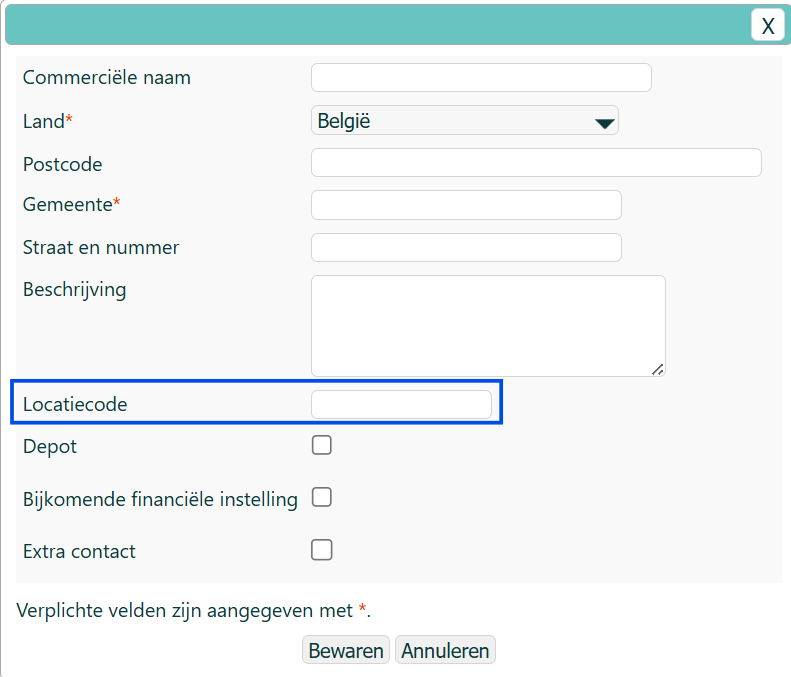
Please note: For each line you must enter a unique address; this can be done by means of a suffix if it concerns the same address.
Consultation rooms
You can add a consultation room by clicking the 'Add' icon () under the heading 'Consultation rooms'. You must add at least one consultation room before you can add consultations.
Waiting rooms
You can add a waiting room by clicking the 'Add' icon () under the heading 'Waiting rooms'. Usually there is only 1, but for practices with multiple locations several waiting rooms can be added.
Hospitalisation cages
You can add a hospitalisation cage by clicking the 'Add' icon () under the heading 'Hospitalisation cages'. Please note: the number of animals per hospitalisation cage is limited to one.
My Fuga
Under this tab you can view your documents relating to your Fuga: invoices, contracts, data processing agreement, etc.